
Musio Studio manualChapter 2
The main window
The sidebar and its six pages, the transport bar, moving around a song, zoom and the menus.
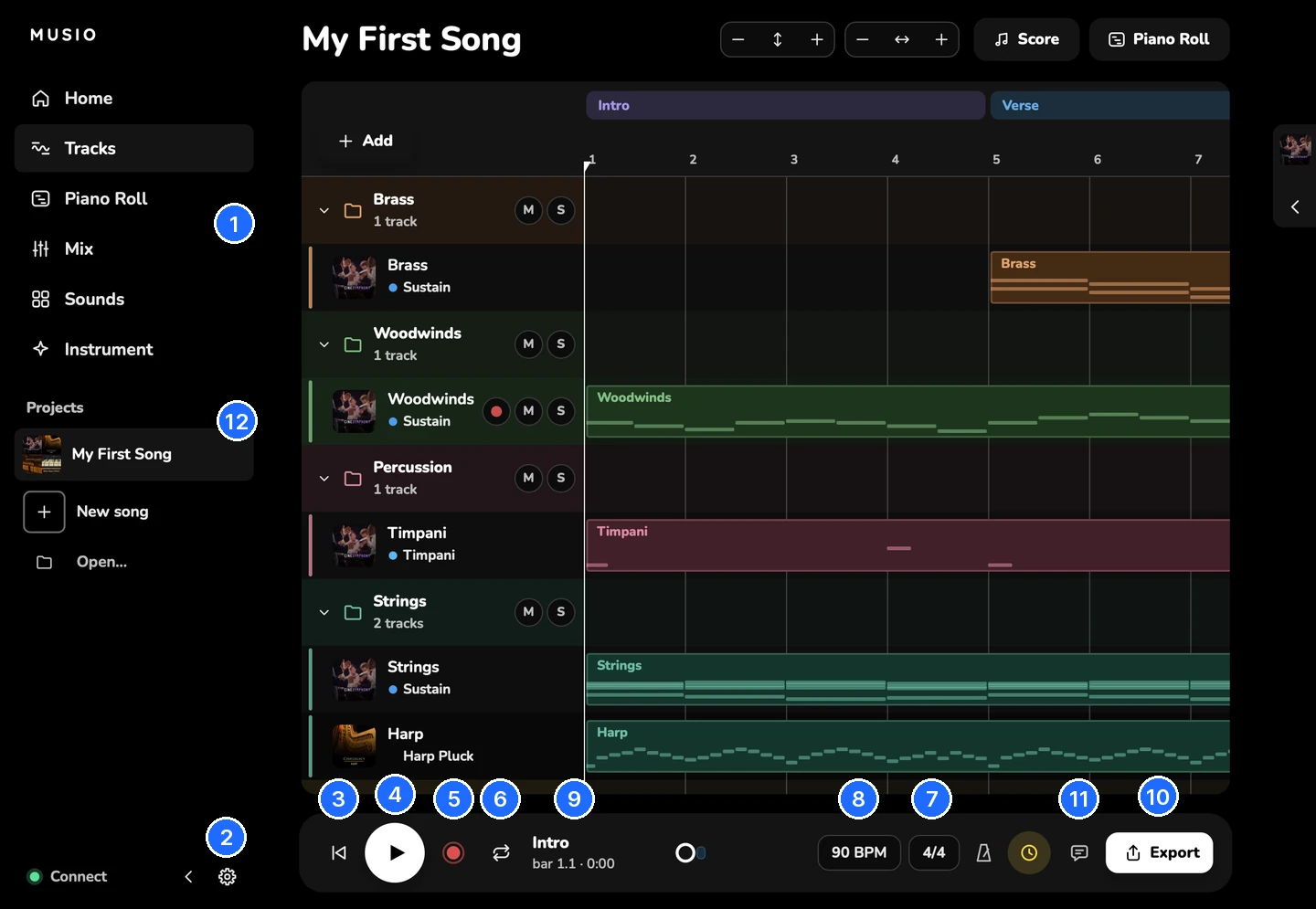
- The sidebar: Home, Tracks, Piano Roll, Mix, Sounds, Instrument
- Settings
- Back to start
- Play / stop
- Record
- Loop
- Time signature
- Tempo
- Bar counter
- Export
- Send feedback
- Not saved yet (the dot)
The six pages
The sidebar switches between six pages. Each one also has a number key.
| Key | Page | What it’s for |
|---|---|---|
| 1 | Home | Recent songs, templates, Made with Musio and new songs |
| 2 | Tracks | The whole song: every track and its clips over time |
| 3 | Piano Roll | The notes of the selected track, with controller lanes under them |
| 4 | Mix | A strip for every track, plus effects, effect buses, the song’s reverb and the master |
| 5 | Sounds | Every Musio sound, to search, preview, download and add |
| 6 | Instrument | The selected track’s sound: articulations, keyswitches, legato, mics and controls |
The Track Panel (Cmd+JCtrl+J) sits beside any page and shows the selected track.
The sidebar
Under the pages, the sidebar has:
- Projects: your recent songs, with New song and Open….
- Your account: Sign in to Musio if you aren’t signed in, and Open Musio Connect. Connect needs an update appears when Musio Connect is out of date.
- What’s downloading, such as Downloading 3 sounds and mics.
- A notice when a new version of Musio Studio is ready, with Download.
- The Settings gear.
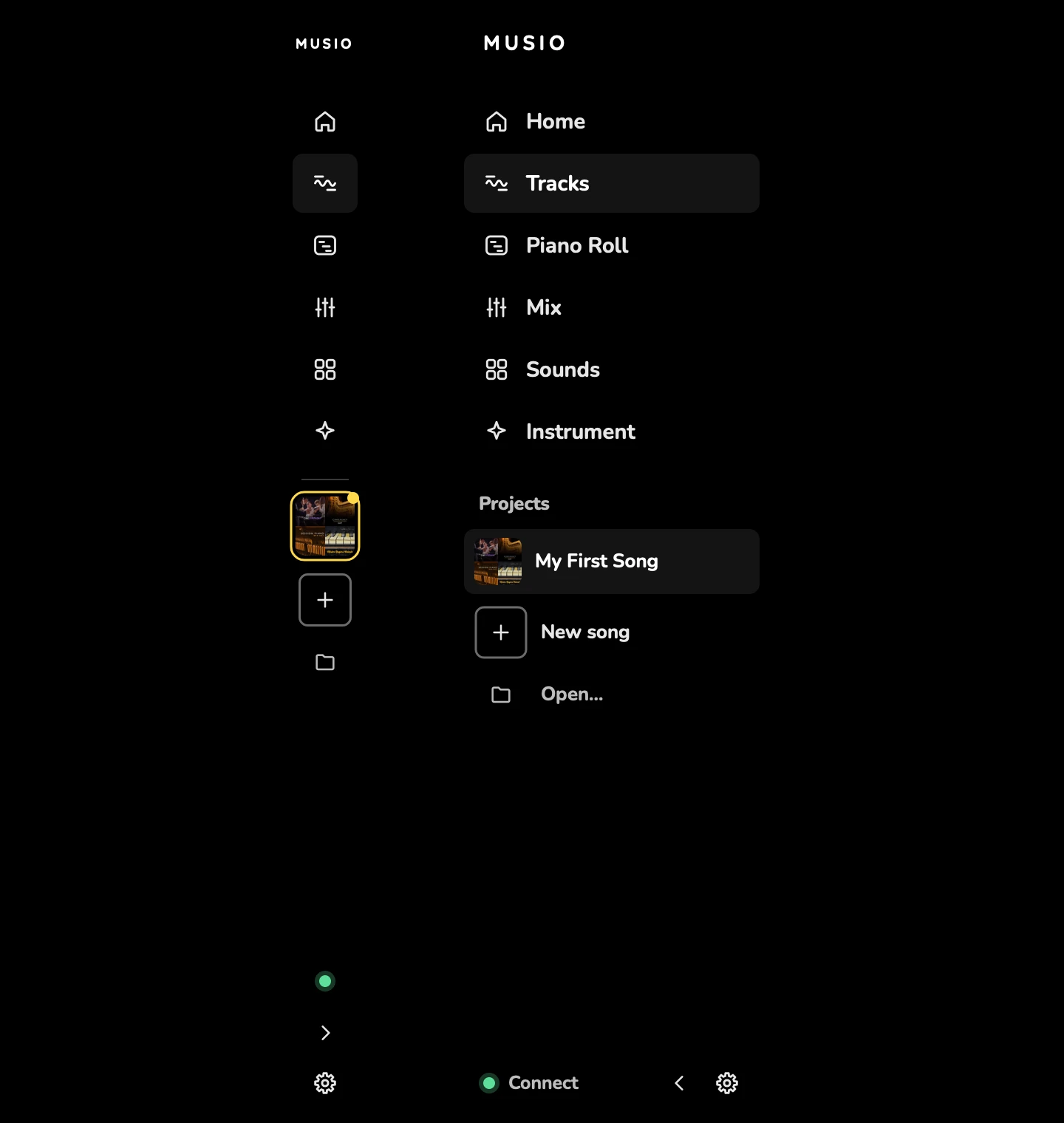
To make the sidebar narrower, switch it to Compact sidebar: icons only. Switch back with Full sidebar, or use View > Compact Sidebar.
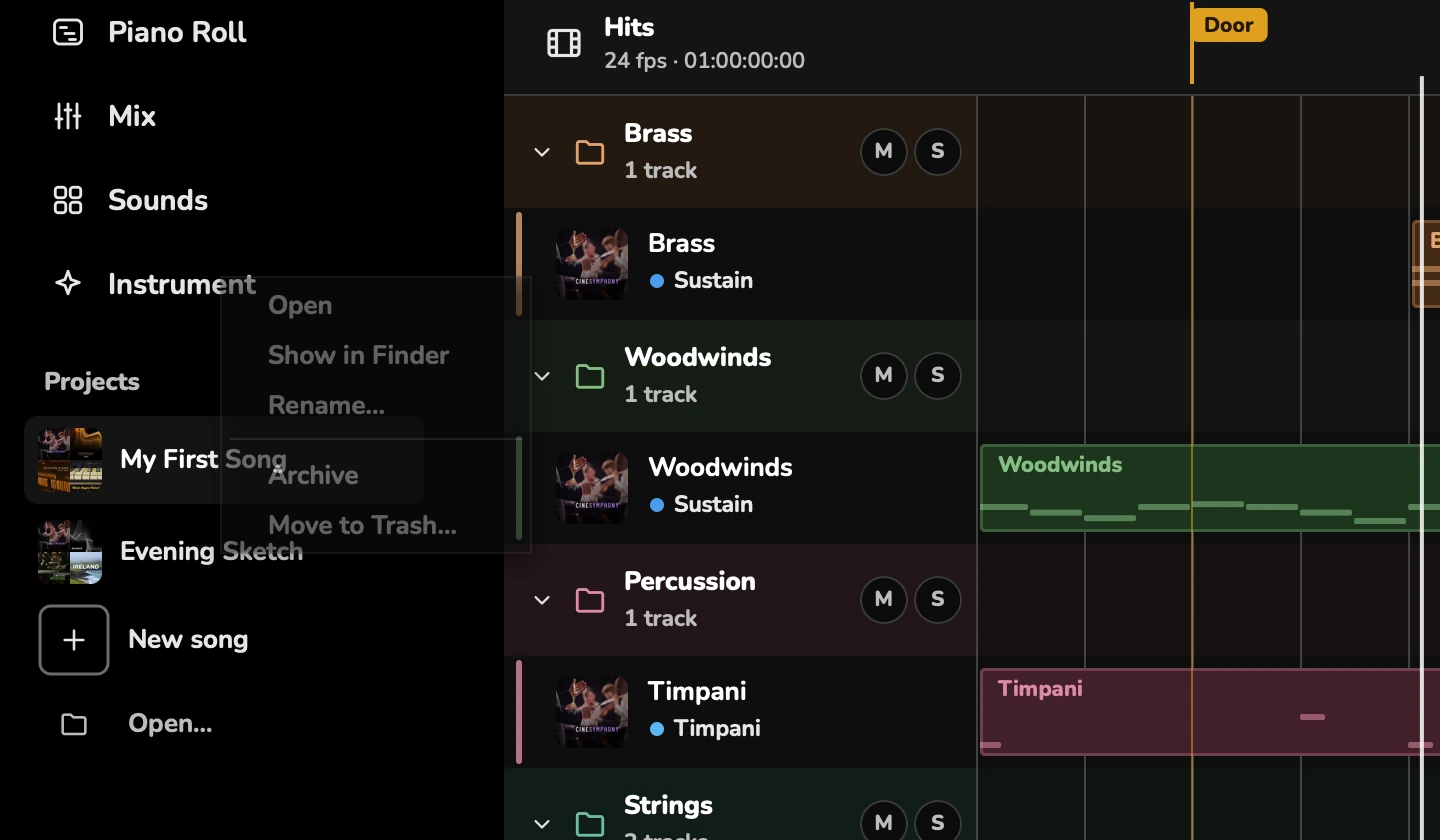
Right-click a song under Projects to Open it, Show in Finder (Show in Explorer on Windows), Rename…, Archive it or Move to Trash… (Move to Recycle Bin… on Windows). Archived songs go to the Archive folder inside your Songs folder.
The transport bar
The transport bar runs along the bottom of the window.

| Control | What it does |
|---|---|
| Back to start | Goes to the start of the song (Return) |
| Play / stop | Plays or stops (Space) |
| Record | Records into the selected track (R) |
| Loop | Loops the bars shown on it (L) |
| Solo and mute summary | Shows how many tracks are soloed or muted. Click it to hear every track for a moment (Hearing all). Your solos and mutes are kept: Restore solos and mutes brings them back |
| Voice commands and Type a command | Say or type what you want Studio to do. See Voice commands |
| Count-in | Turns the count-in before recording on or off |
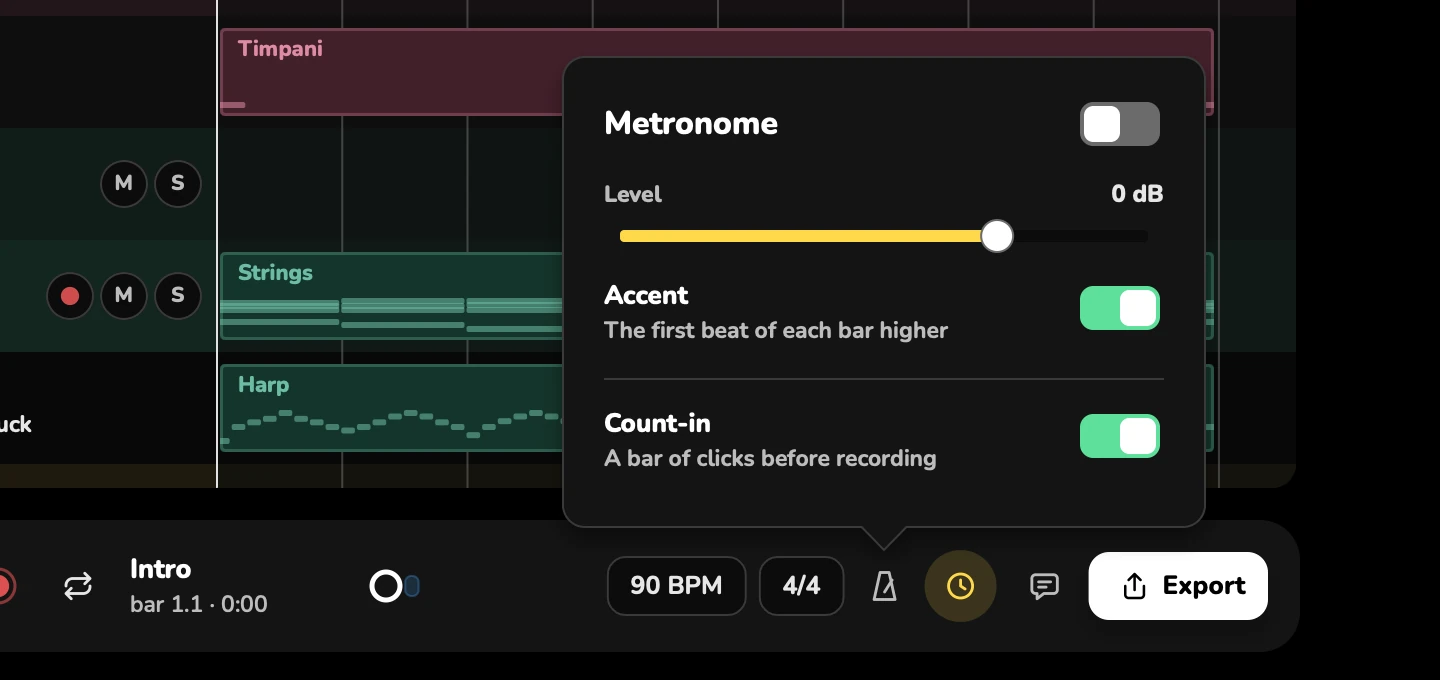
| Metronome | Turns the click on or off (M). Right-click it for Level, Accent (the first beat higher) and Count-in |
| Time signature and tempo | Click either to change it, or to Change from bar…. Other… sets any time signature |
| Bar counter | Click it to go to a bar |
| Export | Exports the song as WAV or MP3, stems, MIDI, or a video with the music |
| Send feedback | Writes to the Musio team |
Studio also shows whether the song is saved: Not saved yet, Changes not saved or Saved.
Moving around the song
| Do this | Keys |
|---|---|
| Play or stop | Space |
| Go back to the start | Return or Home |
| Go to the end | End |
| Back or forward a bar | , and . |
| Back or forward four bars | Option+,Alt+, and Option+.Alt+. |
| Go to a bar | /, or the number pad’s . |
| Loop on or off | L |
| Follow the playhead | F |
Go to Bar… takes a bar (17), a bar and beat (17.3), a timecode, or a section’s name.
Zoom and view
| Do this | Keys or menu |
|---|---|
| Zoom in or out | Cmd+=Ctrl+= and Cmd+-Ctrl+-, or Cmd+→Ctrl+→ and Cmd+←Ctrl+← |
| Zoom to the selection | Z |
| See the whole song | Shift+Z |
| Taller or shorter tracks (or notes, in the Piano Roll) | Cmd+↑Ctrl+↑ and Cmd+↓Ctrl+↓ |
| Fit every track on screen | View > Every Track on Screen |
| Snap to the grid | G |
| Show the Piano Roll under the tracks | N |
| Show minutes and seconds in the ruler | View > Minutes and Seconds in the Ruler |
The View menu also sets the theme (Appearance), Interface Size, Language, Note Names and Show Tooltips. See Settings.
The menus
On a Mac, the menus are in the menu bar at the top of the screen. On Windows and Linux, they’re at the top of Studio’s window.
| Menu | What’s in it |
|---|---|
| File | New, open and save songs; import MIDI, MusicXML and video; export; Audio & MIDI Settings; Keyboard Shortcuts |
| Edit | Undo and redo, cut, copy, paste, duplicate, delete, select all, split clips, Duplicate Track, Draw Notes |
| Transport | Play, record, Step Record, moving around, loop, hits, MIDI timecode, metronome, count-in, Delay Compensation, Clean Repeated Notes and voice commands |
| View | Pages, Track Panel, zoom, Score, Video, Snap, appearance, interface size, language and note names |
| Musio | Settings, Open Musio Connect, Browse Sounds, Show Musio Studio Log, Send Feedback, Record a Performance Report, Check for Updates and Acknowledgments |
On a Mac, Settings… is also in the Musio Studio menu. On Windows and Linux, File > Exit closes Studio.
Undo names what it will undo, such as Undo Delete Violins.