
Musio Studio manualChapter 6
Recording
Record from a MIDI keyboard, your computer keyboard or an audio input, enter notes step by step, and keep notes on the beat.
On this page
Before you record
- Select the track to record into.
- To play from a MIDI keyboard, tick it in Settings > Audio & MIDI. The ticked keyboards play the selected track. No MIDI keyboard? Use your computer keyboard.
- Set the click: M turns the metronome on or off. Right-click the metronome for its Level and Accent (the first beat higher). See The transport bar.
- Turn on Count-in for a bar of clicks before recording starts. It’s on the transport bar and in the Transport menu.
Record a part
- Press R, or the Record button. Numpad 3 and Numpad * record too.
- Play.
- Press R again to stop.
- Press R while the song plays, and recording starts right there, with no count-in.
- A MIDI keyboard’s faders and wheels move Dynamics, Expression and other controls as you play, and Studio’s knobs follow on screen.
- Articulation changes you make while recording go into the take.
- Controller moves you record replace the old curve under the take.
- Arm several instrument tracks to record your playing into each of them in one take.
Play with the computer keyboard
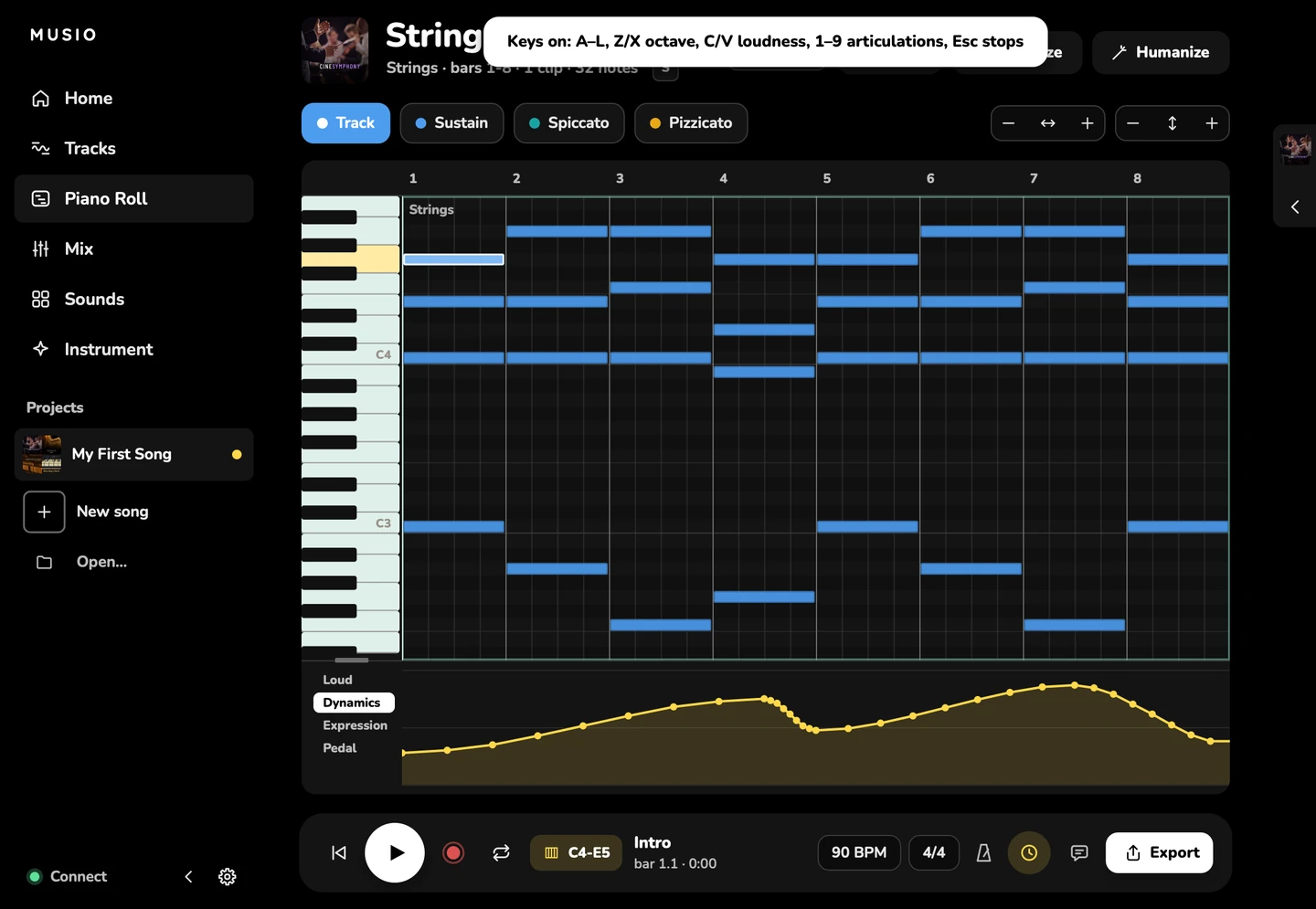
Press K, or choose View > Play Notes With the Computer Keyboard, to play the selected track with your computer’s keys.
| Keys | What they do |
|---|---|
| A S D F G H J K L ; | White keys |
| W E T Y U O P | Black keys |
| Z and X | An octave down or up |
| C and V | Softer or louder |
| 1 to 9 | The track’s articulations |
| Esc | Stop playing with the computer keyboard |
Step Record
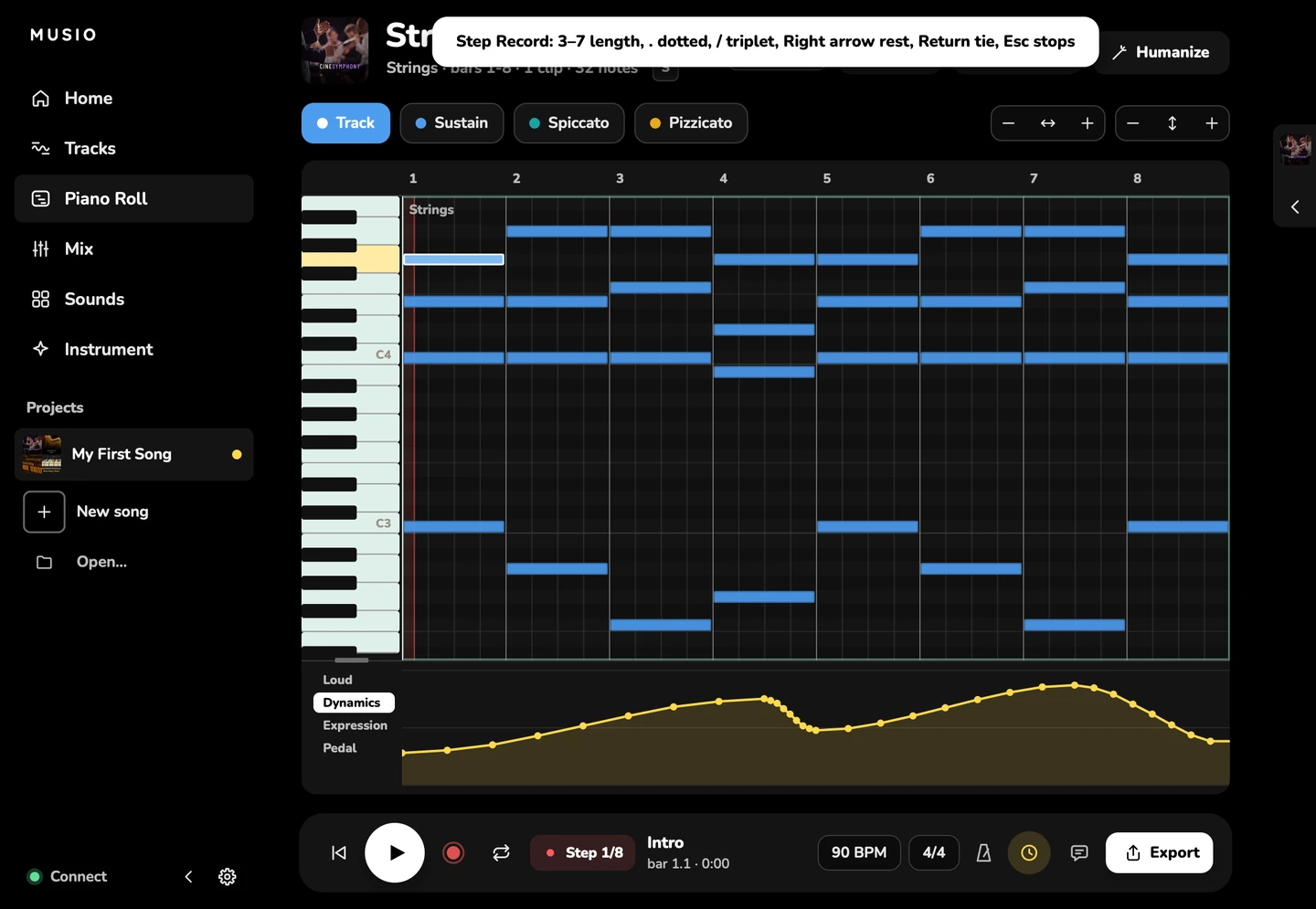
Step Record enters notes one at a time, without playing in time. Use a MIDI keyboard or your computer’s keys; keys held together make a chord.
- Select an instrument track.
- Choose Transport > Step Record, or press Shift+R.
- Choose a note length, then play a note or chord. Studio adds it and moves on.
- Press Esc to stop.
Step Record keeps working while the Score window is in front: the notes go into the track, and the score shows them.
| Key | What it does |
|---|---|
| 2 | 32nd note |
| 3 | 16th note |
| 4 | 8th note |
| 5 | Quarter note |
| 6 | Half note |
| 7 | Whole note |
| . | Dotted on or off |
| / | Triplet on or off |
| → | Add a rest (move on one step) |
| ← | Move back one step, without deleting |
| Delete | Remove the step before, with its notes, and move back to it |
| Return | Tie: lengthen the notes you just entered by one step |
| Option+1Alt+1 to Option+9Alt+9 | Choose the track’s articulations 1 to 9 |
| Esc | Stop Step Record |
Record audio
- Add an audio track: Add > Audio track.
- Arm it, and choose its input in the track header or the Track Panel.
- Press R to record, and R again to stop.
An audio track can hear its input through its effects. You can also drop an audio file on an audio track instead of recording.
Timing
Delay Compensation
Every sound takes a moment to speak after its note starts. With Transport > Delay Compensation on, Studio plays each note early by its sound’s own time, so notes on the grid sound on the beat.
- The time is set for each articulation. Your notes stay where you put them.
- New songs start with Delay Compensation on. Songs made before Musio 2.0.5 open with it off and play exactly as before.
- It’s set for each song.
- When you record with it on, notes are saved where you heard them.
Clean Repeated Notes
With Transport > Clean Repeated Notes on, a fast note on the same key as the note before it is heard clearly: what still rings of the last note fades out quickly as the key plays again. It’s on in new songs. Older songs can turn it on in the Transport menu.
Track Delay
The Delay knob in the Track Panel plays one track up to 100 ms later (+) or earlier (−). Double-click it to reset it. Recording and the metronome aren’t affected.