
Musio Studio manualChapter 13
Keyboard shortcuts
Musio Studio's keys, key sets from other music software, and how to set your own.
On this page
These are Musio Studio’s own keys. Use the switch at the top of this page to see them for a Mac, or for Windows and Linux (Ctrl for CmdCtrl, Alt for OptionAlt). Menus and tooltips always show the keys you’re using.
Key sets from other music software
Coming from another music app? Studio can use its keys.
On first launch after a new install, Studio asks once: Coming from another DAW? Pick your music software, or Keep Musio’s keys. You can change it anytime in Settings > Shortcuts, under Keys like:
- Open Settings > Shortcuts, or choose File > Keyboard Shortcuts….
- Next to Keys like, choose a key set: Logic Pro, Pro Tools, Cubase, Ableton Live, FL Studio or Digital Performer. Musio Studio sets Studio’s own keys again. Studio then shows Keys like and the set you chose.
- Keys you’ve set yourself stay on top of a key set.
- Undo brings back the keys you had before.
Set your own keys
In Settings > Shortcuts:
- Click a key and press another to change it.
- Add a key gives a command a second key. Remove this key takes one away.
- Reset and Reset All put keys back as they were.
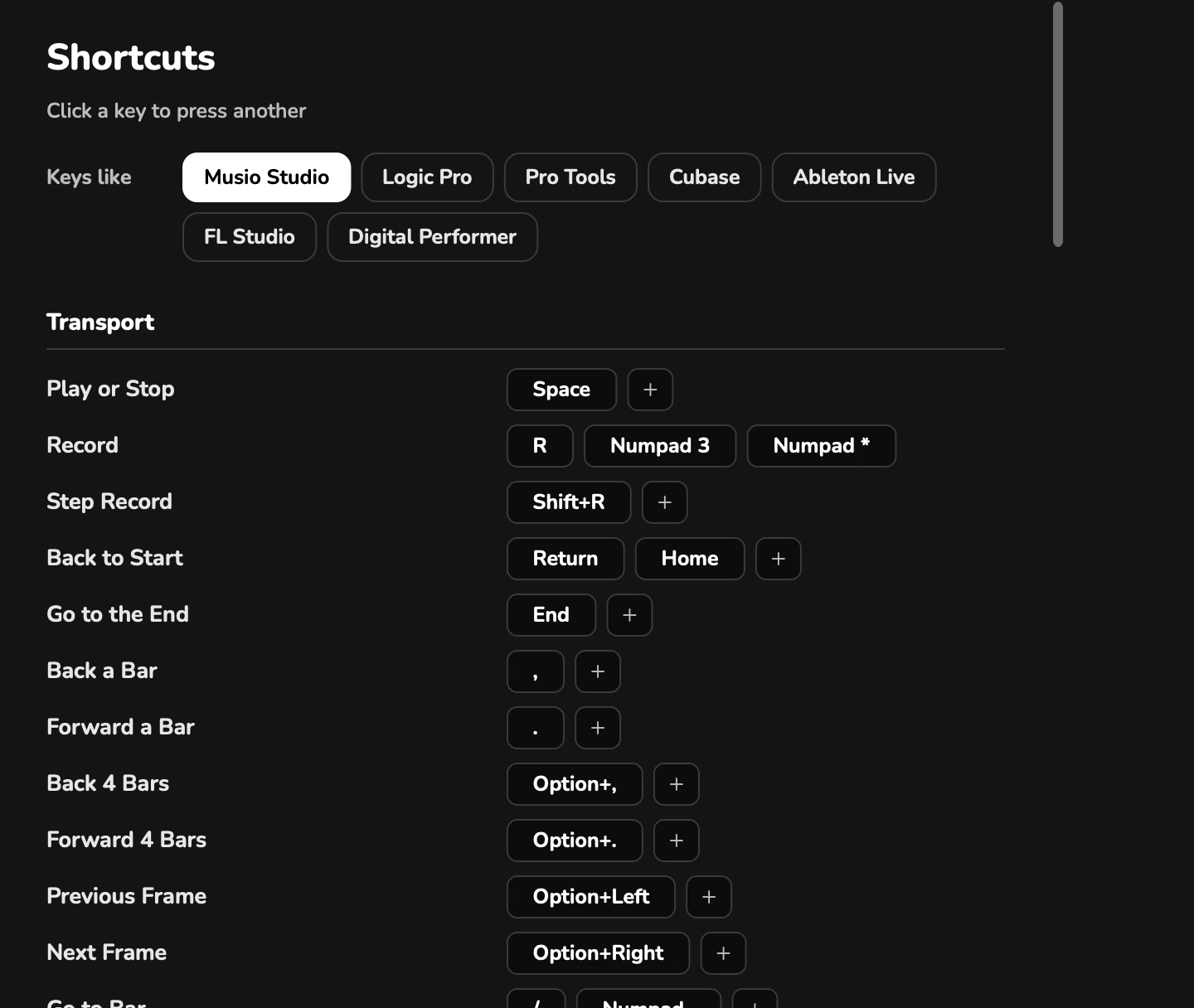
Transport
| Action | Keys |
|---|---|
| Play or stop | Space |
| Record, or stop recording | R, Numpad 3 or Numpad * |
| Step Record | Shift+R |
| Back to start | Return or Home |
| Go to the end | End |
| Back a bar, forward a bar | , and . |
| Back four bars, forward four bars | Option+,Alt+, and Option+.Alt+. |
| Go to Bar… | / or Numpad . |
| Loop | L |
| Metronome | M |
| All Notes Off | Cmd+1Ctrl+1 |
| Add Hit | H |
| Voice Commands (start or stop listening) | V |
| Type a Command… | T |
Pages and panels
| Action | Keys |
|---|---|
| Home, Tracks, Piano Roll, Mix, Sounds, Instrument | 1 to 6 |
| Track Panel | Cmd+JCtrl+J |
| Piano Roll under the tracks | N |
| Show Score | Shift+Cmd+NShift+Ctrl+N |
| Settings | Cmd+,Ctrl+, |
Songs
| Action | Keys |
|---|---|
| New Song | Cmd+NCtrl+N |
| Open… | Cmd+OCtrl+O |
| Save | Cmd+SCtrl+S |
| Save As… | Shift+Cmd+SShift+Ctrl+S |
| Export Song (WAV)… | Cmd+ECtrl+E |
Editing
| Action | Keys |
|---|---|
| Undo | Cmd+ZCtrl+Z |
| Redo | Shift+Cmd+ZShift+Ctrl+Z |
| Cut, copy, paste | Cmd+XCtrl+X, Cmd+CCtrl+C, Cmd+VCtrl+V |
| Duplicate | Cmd+DCtrl+D |
| Select all clips (Tracks) or notes (Piano Roll) | Cmd+ACtrl+A |
| Delete | Delete |
| Split Clips at Playhead (Tracks) | Cmd+TCtrl+T |
| Draw Notes (Piano Roll) | B |
| Quantize (Piano Roll) | Q |
View
| Action | Keys |
|---|---|
| Zoom in | Cmd+=Ctrl+= or Cmd+→Ctrl+→ |
| Zoom out | Cmd+-Ctrl+- or Cmd+←Ctrl+← |
| Zoom to Selection | Z |
| Zoom to the Whole Song | Shift+Z |
| Taller or shorter tracks or notes | Cmd+↑Ctrl+↑ and Cmd+↓Ctrl+↓ |
| Follow Playhead | F |
| Snap to Grid | G |
| Loudness, Dynamics or Expression lane | Option+1Alt+1, Option+2Alt+2, Option+3Alt+3 |
| Play Notes With the Computer Keyboard | K |
Playing with the computer keyboard
While Play Notes With the Computer Keyboard (K) is on:
| Keys | What they do |
|---|---|
| A to L and ; | White keys |
| W E T Y U O P | Black keys |
| Z and X | An octave down or up |
| C and V | Softer or louder |
| 1 to 9 | The track’s articulations |
| Esc | Stop |
Step Record
While Step Record (Shift+R) is on:
| Key | What it does |
|---|---|
| 2 | 32nd note |
| 3 | 16th note |
| 4 | 8th note |
| 5 | Quarter note |
| 6 | Half note |
| 7 | Whole note |
| . | Dotted on or off |
| / | Triplet on or off |
| → | Add a rest (move on one step) |
| ← | Move back one step, without deleting |
| Delete | Remove the step before, with its notes, and move back to it |
| Return | Tie: lengthen the notes you just entered by one step |
| Option+1Alt+1 to Option+9Alt+9 | Choose the track’s articulations 1 to 9 |
| Esc | Stop |
Scoring to picture
| Action | Keys |
|---|---|
| Add Hit | H |
| Previous or next frame | Option+←Alt+← and Option+→Alt+→ |