
Musio Studio manualChapter 5
The Instrument page
Choose articulations and keyswitches, set up legato, turn mics on and off, and use an instrument's own controls.
The Instrument page (6) shows the selected track’s sound. To open it, press 6, choose Open in the Track Panel, or right-click a track and choose Open instrument.
At the top, a row of the song’s tracks lets you switch to another track’s sound. When they don’t all fit, More tracks (the + and a number) lists the rest.
Below it are the sound’s name and its playable range (for example, plays C1–C6), with Change sound, Open in Sounds, the arm button, M and S. Update available appears when a newer version of the sound is ready, and Get in store when it isn’t in your library.
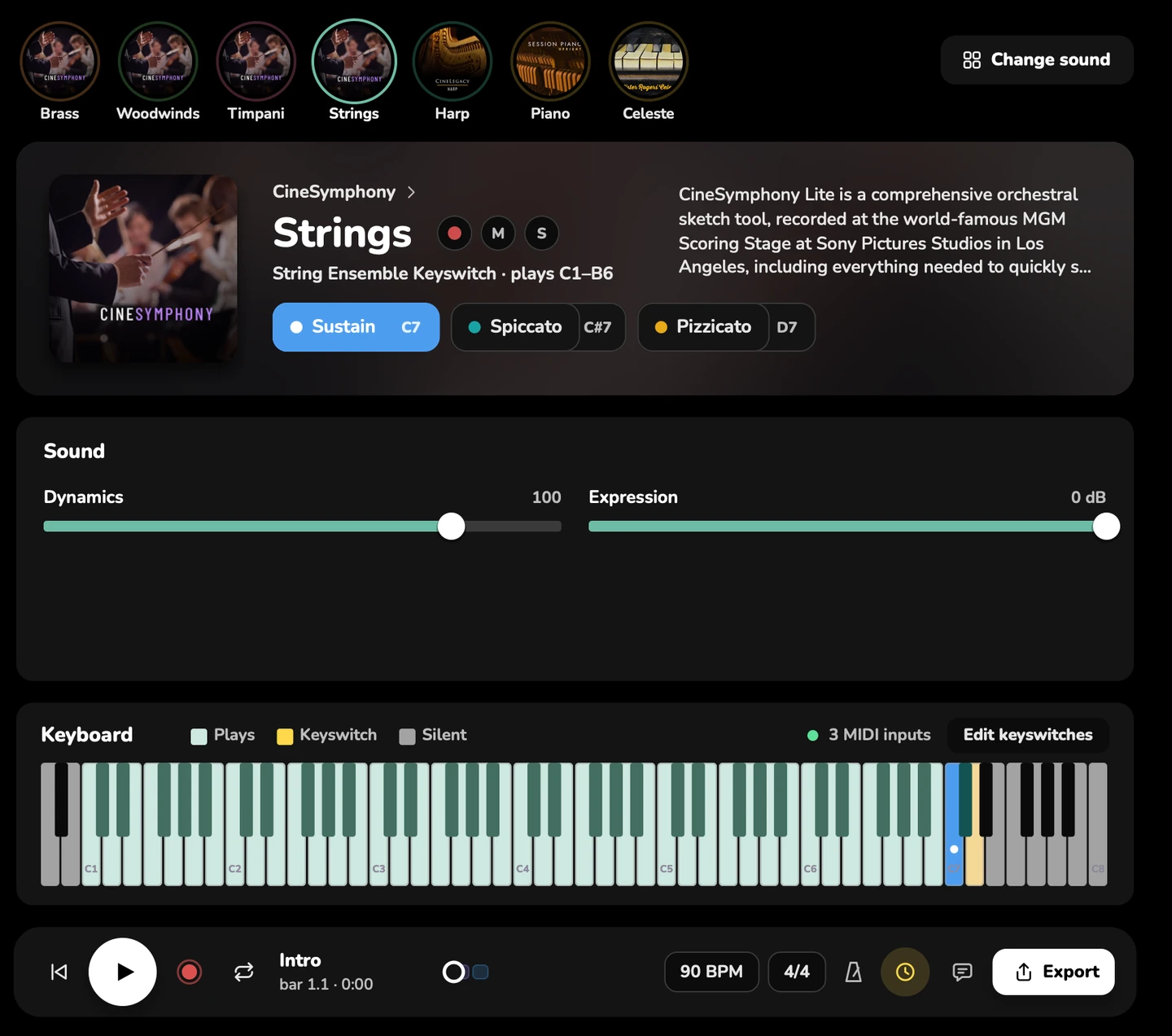
The keyboard
The keyboard shows which keys play notes, which are keyswitches, and which are silent. It also shows your MIDI keyboard: No MIDI keyboard, or how many MIDI inputs are connected. To choose which MIDI keyboards play, see Audio & MIDI.
Articulations
Musio instruments have articulations: ways of playing, such as legato, sustain, staccato, spiccato, pizzicato and tremolo. Keyswitch patches hold many articulations in one sound.
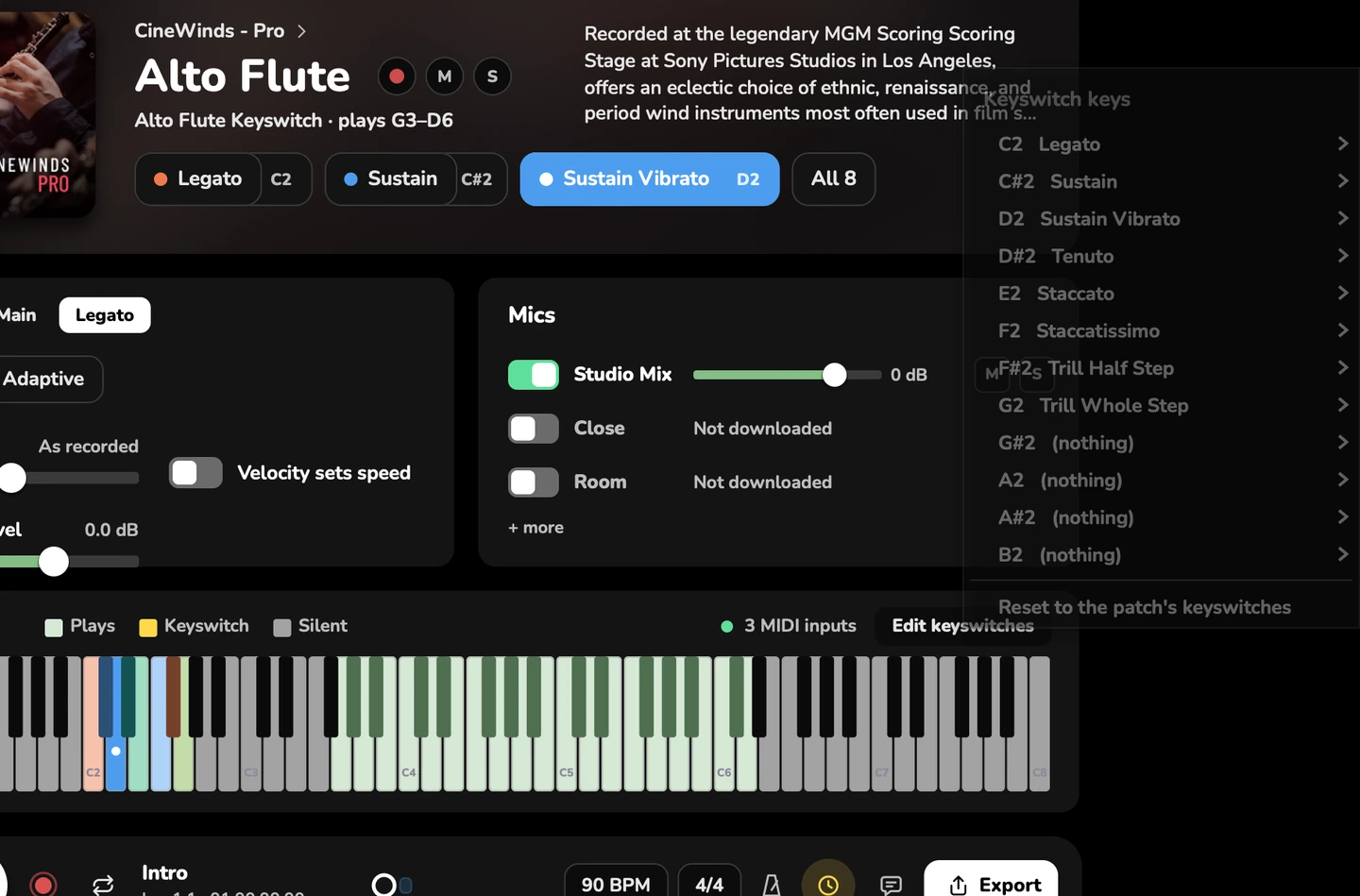
- The Instrument page lists the sound’s articulations, each with its keyswitch key. Choose one to make it the track’s articulation.
- All (with the number of articulations, such as All 12) opens a menu of every articulation with its keyswitch.
- To change articulation partway through a part, give those notes their own articulation in the Piano Roll, or change it while you record: the change goes into the take.
- Studio sends the keyswitches for you. You don’t need to write keyswitch notes.
Edit keyswitches
Edit keyswitches chooses the articulation on each of the 12 keyswitch keys.
- Choose Edit keyswitches.
- For each key, pick an articulation, or Nothing (unload) to leave it empty.
- To go back to the patch’s own layout, choose Reset to the patch’s keyswitches.
An articulation that isn’t loaded loads when you choose it.
Legato
Instruments that play legato have a Legato section.
| Setting | What it does |
|---|---|
| Fixed | Every transition between notes as it was recorded: the most natural sound. New tracks start on Fixed |
| Adaptive | Each transition as quick as your playing needs, so fast passages land on time |
| Speed | As played, as recorded, or faster or slower by a percentage |
| Velocity sets speed | Harder notes get faster transitions |
| Transition level | How much of the slide between notes you hear, from −12 to +6 dB |
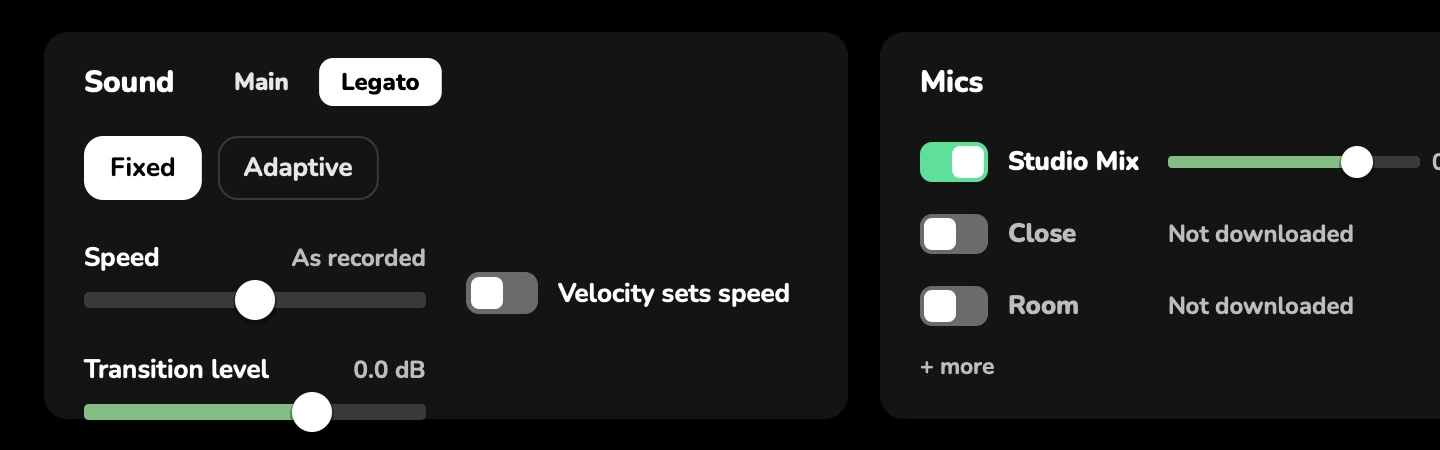
Speed and Transition level can follow MIDI CCs as the song plays: Legato speed (CC15) and Transition level (CC14) have their own lanes in the Piano Roll. To use other CCs, right-click the Speed or Transition level slider.
Sound controls
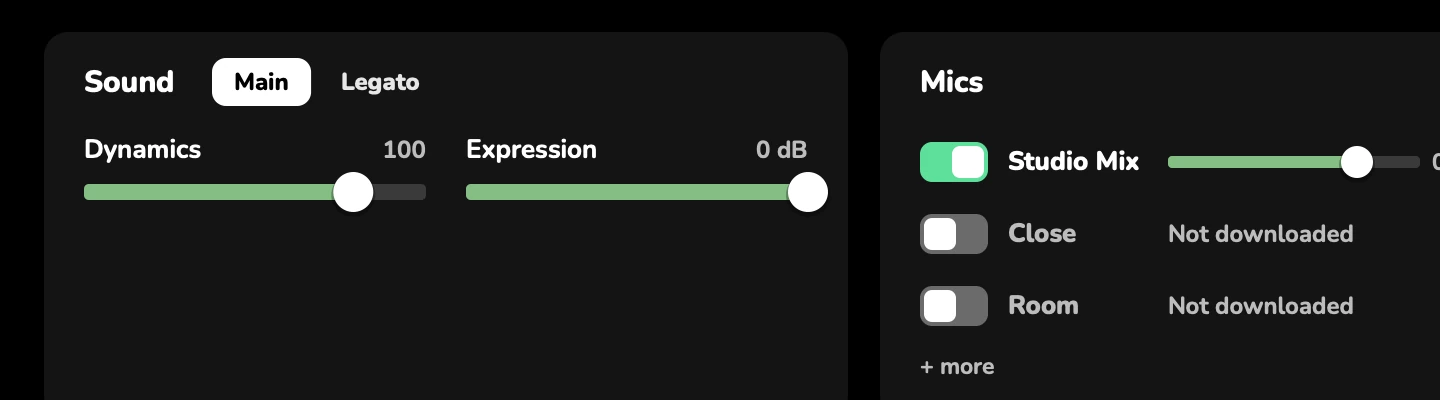
Under Main and More are the instrument’s own controls. They differ from instrument to instrument.
The page also has the track’s Level, its Reverb send, its Send to an effect bus, and its Effects. See Mixing and effects.
Mics
Many Musio instruments were recorded with several microphones. The Mics section shows each one.
- Each mic has its own level, mute and solo.
- A mic that isn’t on your computer has a download button. It downloads once Musio Connect is ready.
- At least one mic stays on.
- Some instruments say This instrument’s mics are always on.
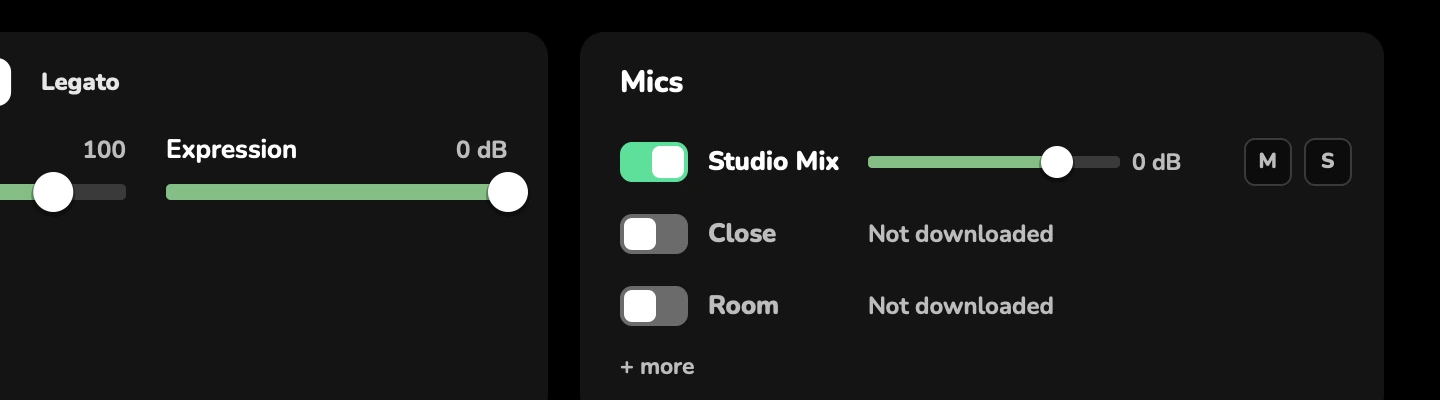
Mics you turn on are saved with the song. See also Mics in Sounds.
Audio tracks
For an audio track, the Instrument page shows how much audio it holds. Press R to record, or drop an audio file on it. See Record audio.