
Musio Studio manualChapter 8
Score
Score is Musio Studio's notation editor. See your song as a full score or as any player's part, follow it as it plays, and export PDFs and MusicXML.
On this page
Score shows your song as notation, in its own window: the full score, or any player’s part. The score is made from your tracks and keeps up as you change them.
Open the score
Click Score next to Piano Roll in the Tracks toolbar, or choose View > Show Score (Shift+Cmd+NShift+Ctrl+N).
- As the song plays, the score follows it and turns to the next page when the music gets there.
- Click anywhere in the score to move the playhead there (if the song is playing, it continues from that spot). Press Space to play or stop.
- Drag to move around the page.

Layouts
| Choose | To see |
|---|---|
| Full Score menu | The full score, or one player’s part |
| One Page | One page at a time |
| Two Pages | Two pages side by side, as on a conductor’s stand |
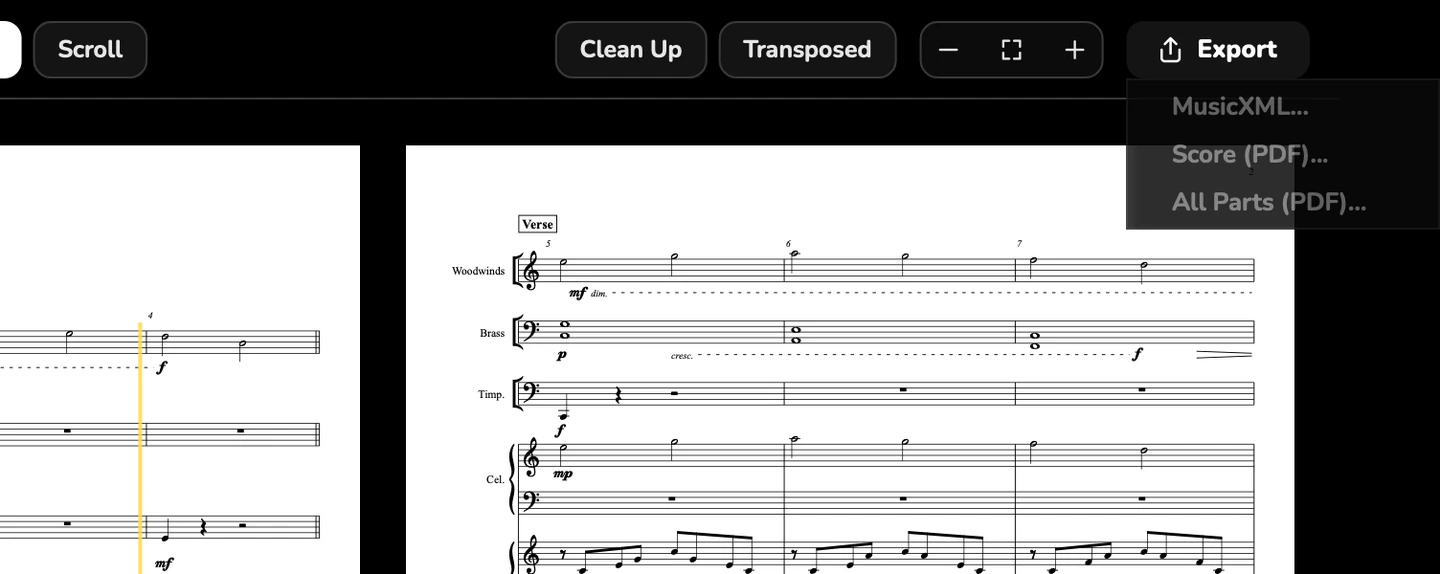
| Scroll | One long line of music, every staff |
| Zoom out, Fit, zoom in | Smaller, whole pages, or larger |
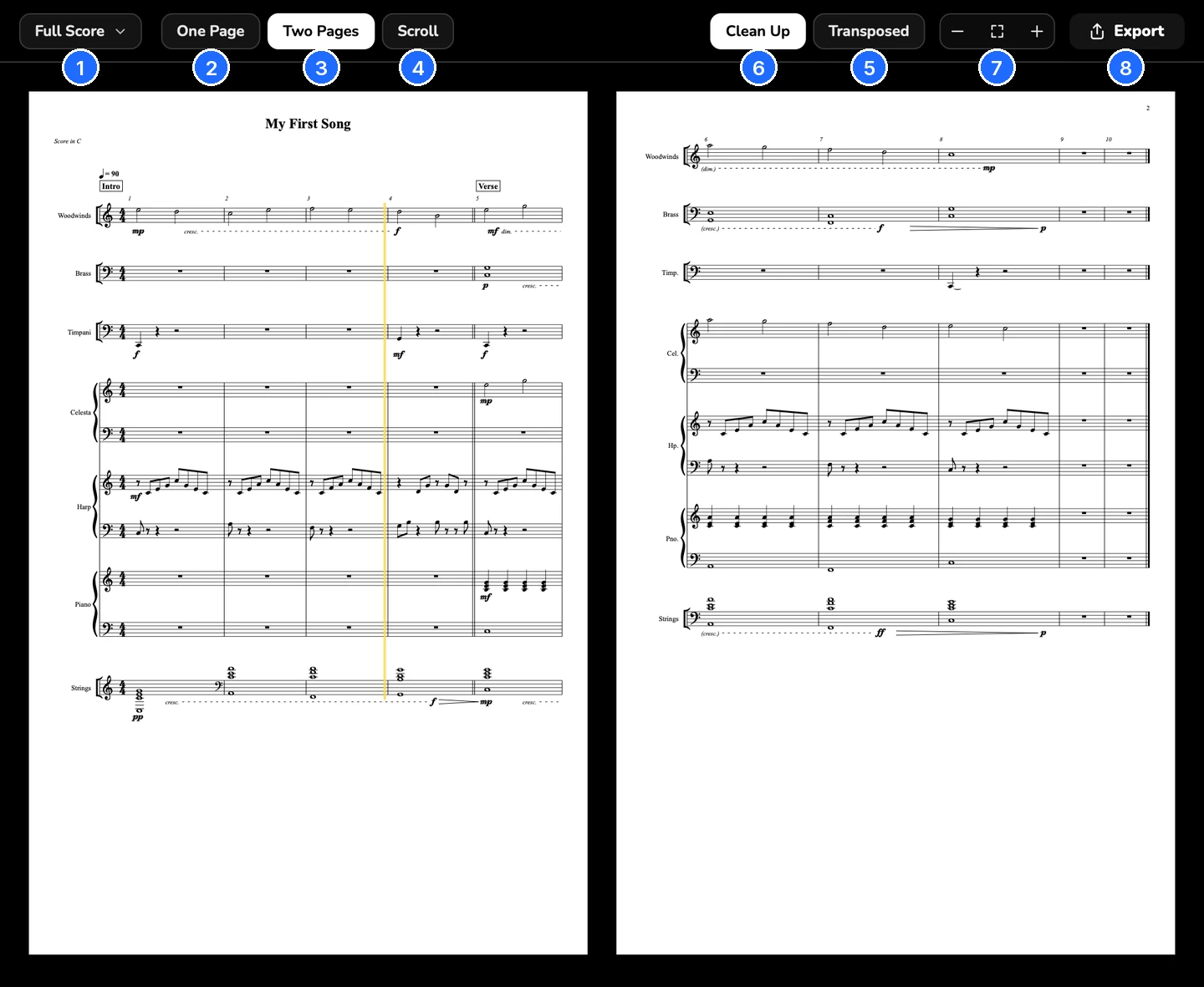
- Full Score
- One Page
- Two Pages
- Scroll
- Transposed
- Clean Up
- Zoom Out, Fit, Zoom In
- Export
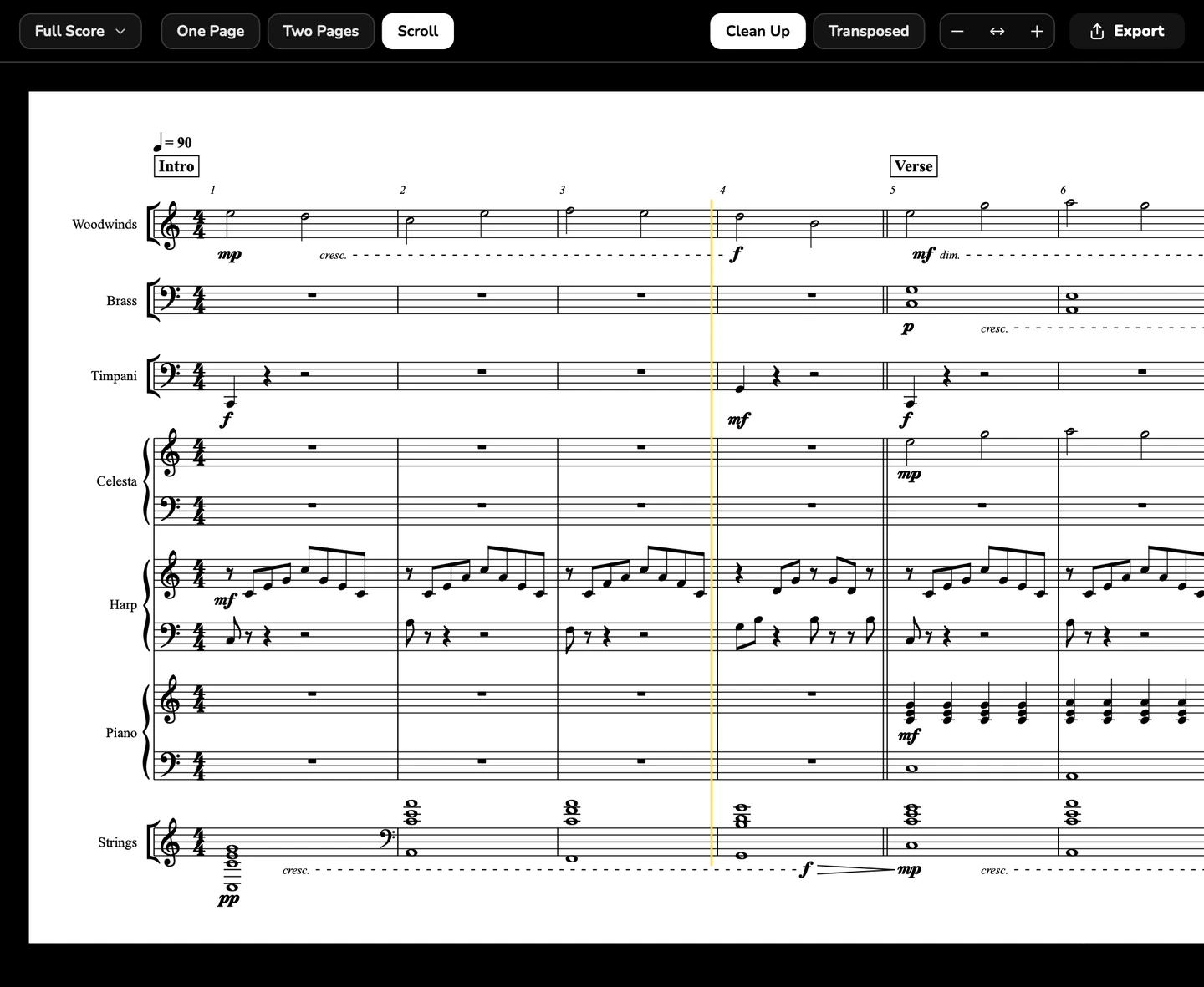
Transposed and Clean Up
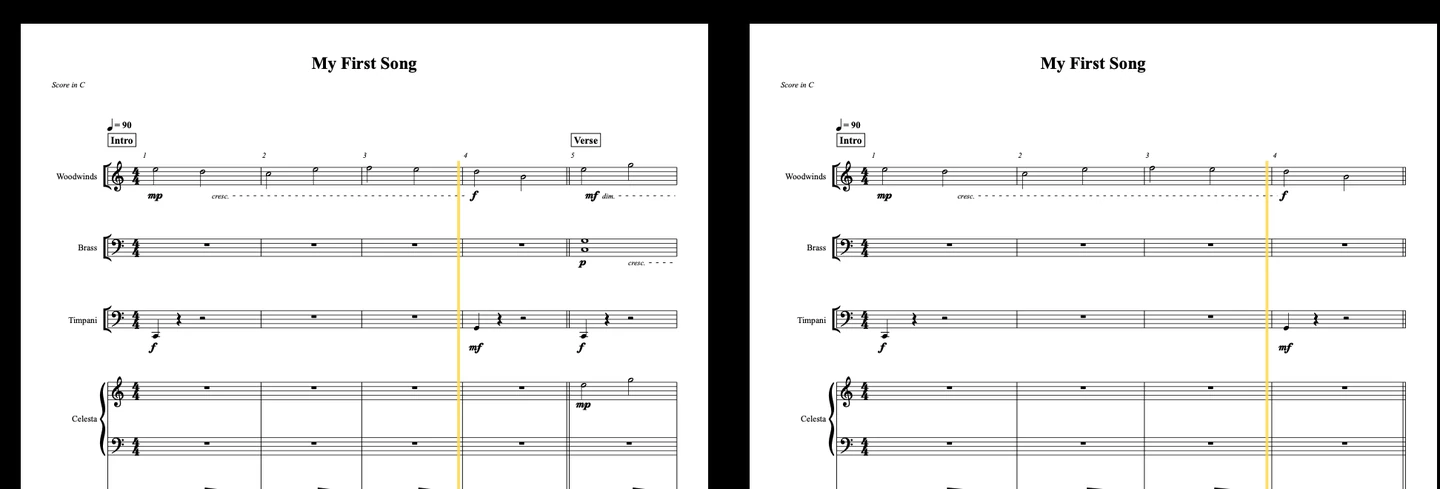
| Setting | On | Off |
|---|---|---|
| Transposed | As the players read it | The score in C |
| Clean Up | What the notes mean | The notes exactly as played |
| A Staff for Each Track | Every track on a staff of its own |
Clean Up puts note starts on the grid, ties sustained notes, adds staccatos to short notes, and leaves out keyswitch notes. Your notes in the song don’t change.
What the score shows
- Dynamics: from the Dynamics lane (CC1), or from loudness, as marks and hairpins.
- Slurs over legato phrases.
- Clefs that change automatically.
- Tuplets, octave lines, pedal markings and rolled chords.
Score is engraved in the Bravura music font.
Changing the music
Score is for reading, playing and exporting: you can’t enter or edit notes on the staff, and Delete in the Score window deletes nothing. To change the music, edit the notes in the Piano Roll, or play and record them. The score updates as you go.
Step Record keeps working while the Score window is in front: the notes go into the track, and the score shows them.
Parts
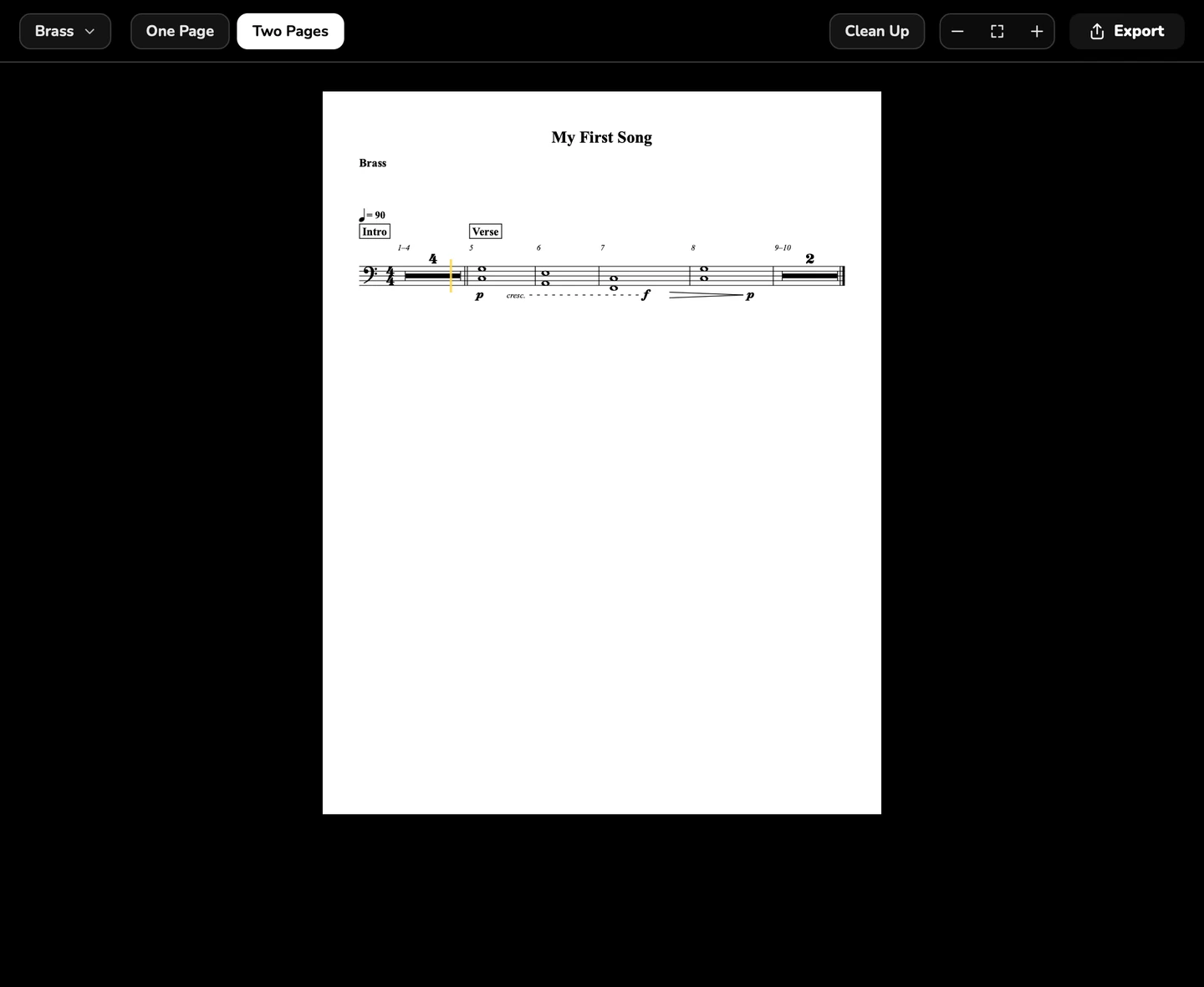
To see one player’s part, choose it in the Full Score menu. Turn on Transposed to see it as the player reads it.
Export the score and parts
Choose Export in the Score window:
| Export | What you get |
|---|---|
| MusicXML… | A MusicXML file, for other notation software |
| Score (PDF)… | The full score as a PDF |
| This Part (PDF)… | The part you’re looking at as a PDF |
| All Parts (PDF)… | Every part as its own PDF. Studio asks for a folder to put them in |
Bring in a score
File > Import MIDI or MusicXML… makes a new song from a MIDI or MusicXML file, with a Musio sound for every part. See Import MIDI or MusicXML.