
Musio Studio manualChapter 12
Import and export
Bring in MIDI, MusicXML and audio, and export your song as WAV or MP3, stems, MIDI, or a video with the music.
On this page
Import MIDI or MusicXML
To make a new song from a MIDI or MusicXML file:
- Choose File > Import MIDI or MusicXML…, or Import MIDI… on Home.
- Pick a
.mid,.midi,.smf,.musicxml,.mxlor.xmlfile.
Every part gets a Musio sound. Markings in a score, such as staccato, pizzicato, tremolo and con sordino, play with the sound’s own articulations.
A part whose best sound you don’t own plays on a stand-in you do own.
Importing doesn’t download anything. If sounds you own aren’t on your computer yet, a message says how many need downloading: use Download at the top of Tracks to get them.
Import audio
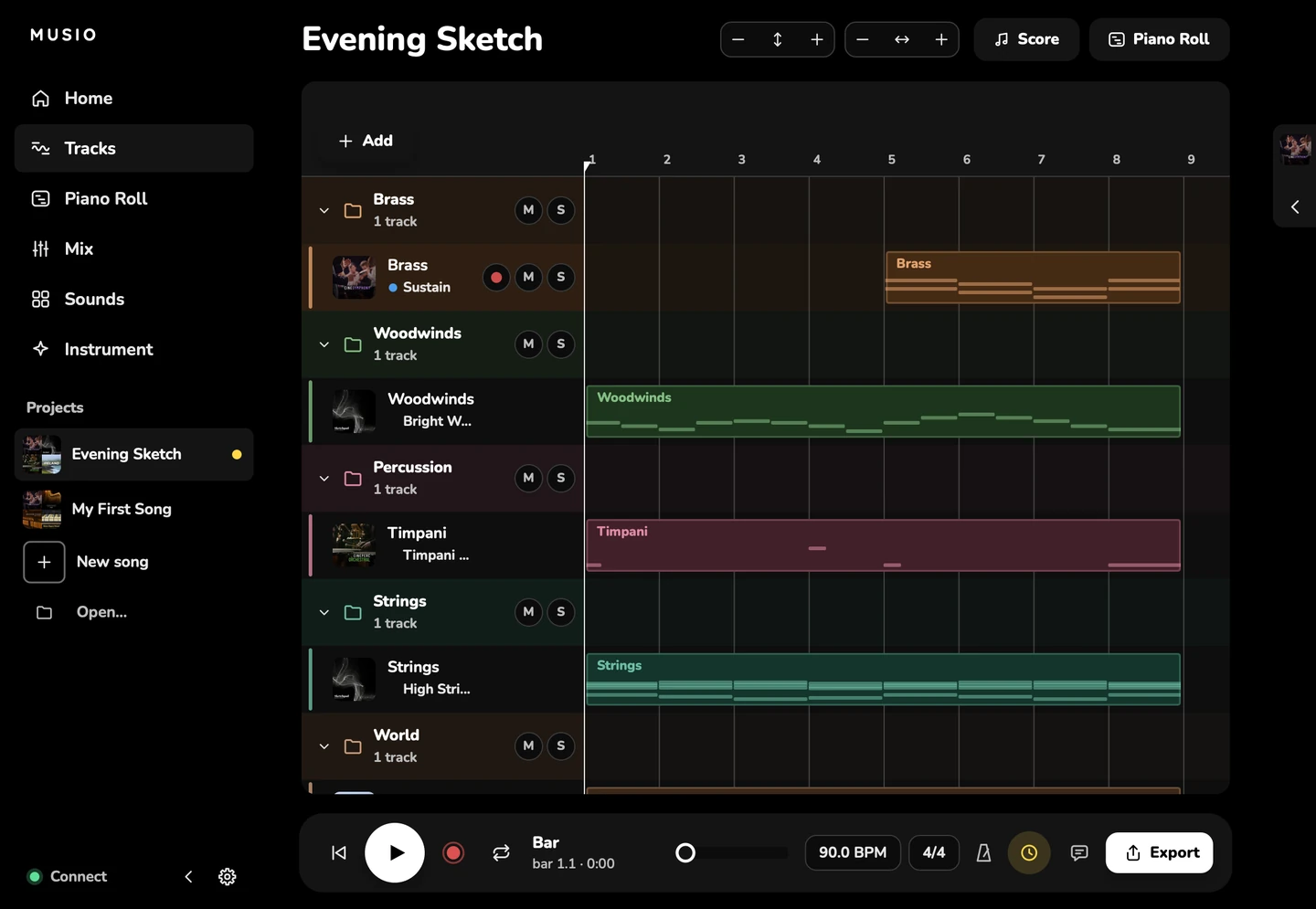
- Choose Add > Import audio file… on Tracks, or drop an audio file on an audio track.
- Studio opens WAV, AIFF, MP3, FLAC, OGG, M4A and CAF files.
Export
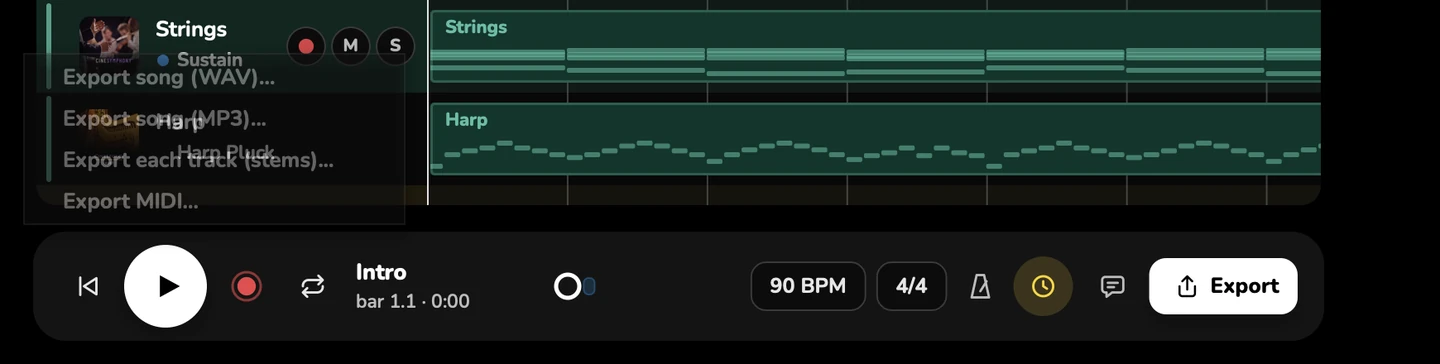
Export from the File menu, or from Export on the transport bar.
| Export | Menu | What you get |
|---|---|---|
| The song as WAV | Export Song (WAV)… (Cmd+ECtrl+E) | One 24-bit stereo WAV file |
| The song as MP3 | Export Song (MP3)… | One 320 kbps MP3 |
| Stems | Export Each Track (Stems)… | A WAV for every track, in a folder named after the song |
| MIDI | Export MIDI… | A MIDI file of the song’s parts |
| Video with music | Export Video with Music… | The song’s video with the song as its sound. See Export for picture |
| Score and parts | Export in the Score window | MusicXML, or PDFs of the score and parts. See Export the score |
How exports work
- Exports are rendered offline, not in real time, so they’re clean even for heavy songs.
- Exports follow your solos and mutes.
- They go to
Music/Musio Studio/Exportsunless you choose another place. - To cancel an export, use its progress window.
- A song with a timecode exports Broadcast WAV files that say where they start. See Export for picture.
Loudness
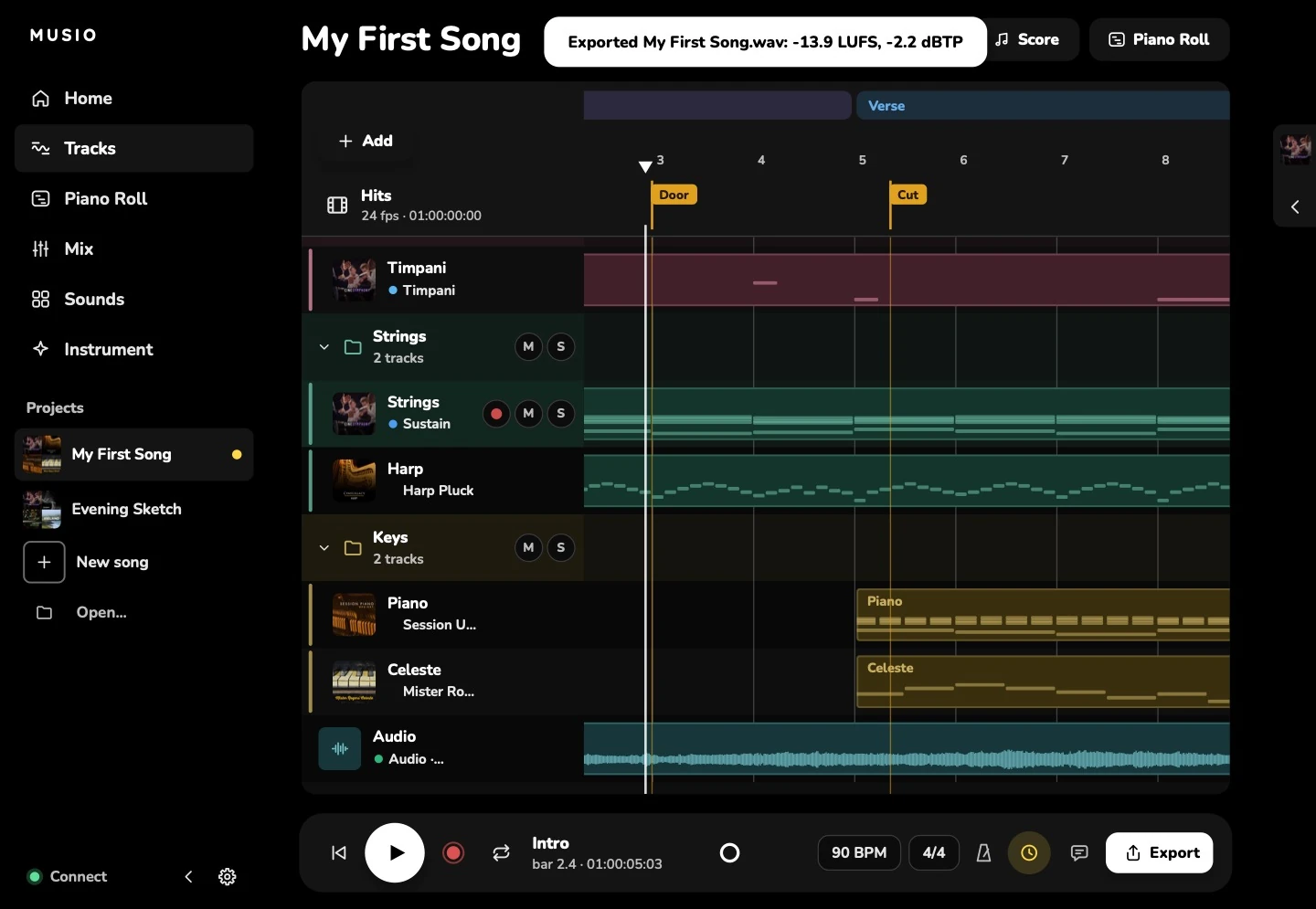
After a WAV or MP3 export, Studio reports its loudness, for example Exported Song.wav: −14.2 LUFS, −1.0 dBTP. To aim for a loudness, use Mastering.
Finish a song in other music software
Musio Studio isn’t a plugin. To take a song to other music software, export stems (a WAV for every track) or MIDI.
To play Musio’s instruments inside other music software, use the Musio plugin. It comes in the same installer, and uses the same sounds. See the FAQ.