
Musio Studio manualChapter 7
Piano Roll
Draw and edit notes, give notes their own articulations, quantize, and shape dynamics and expression in the controller lanes.
On this page
The Piano Roll (3) shows the notes of the selected track, with controller lanes under them.
- To edit notes without leaving Tracks, press N: the Piano Roll opens under the tracks.
- To open a clip in the full page, right-click it and choose Edit notes in the full Piano Roll.
- Previous clip and Next clip step through the track’s clips.
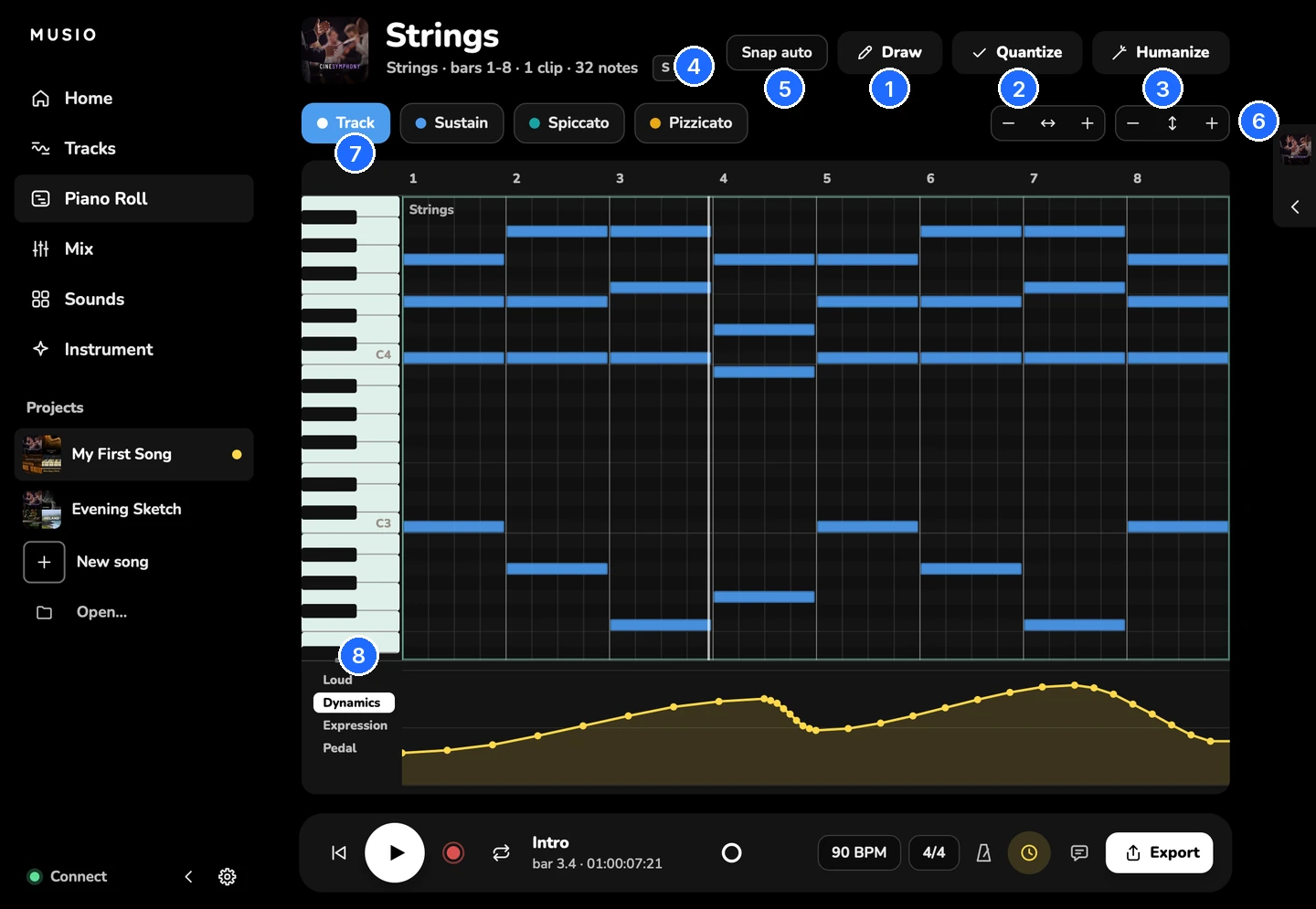
- Draw
- Quantize
- Humanize
- Solo
- Snap clips and notes
- Zoom
- Articulations
- Lanes: Loud, Dynamics, Expression, Pedal
Tools
| Tool | What it does |
|---|---|
| Draw (B) | Click or drag to add notes |
| Quantize (Q) | Moves notes to the grid. Quantize settings… sets how |
| Humanize | Adds small timing variations |
| Solo | Hear only this track |
| Snap (G) | Lines up clips and notes to the grid |
| Other tracks | Shows or hides the other tracks’ notes, faintly, behind this one’s |
| Follow (F) | Keeps the playhead in view as the song plays |
| Zoom | Fit the clip, Fit the notes’ range, and taller or shorter notes (Cmd+↑Ctrl+↑ and Cmd+↓Ctrl+↓) |
Add notes
- Double-click to add a note.
- Ctrl-drag to add a note as long as you drag.
- Press B for Draw, then click or drag to add notes.
A note you click in is one Snap step long.
Edit notes
- Drag a note to move it. Drag its edges to make it longer or shorter.
- Select notes, then copy, paste, duplicate or delete them with the usual keys (see Keyboard shortcuts).
- Cmd+ACtrl+A selects every note. With nothing selected, Quantize and Humanize work on the whole track.
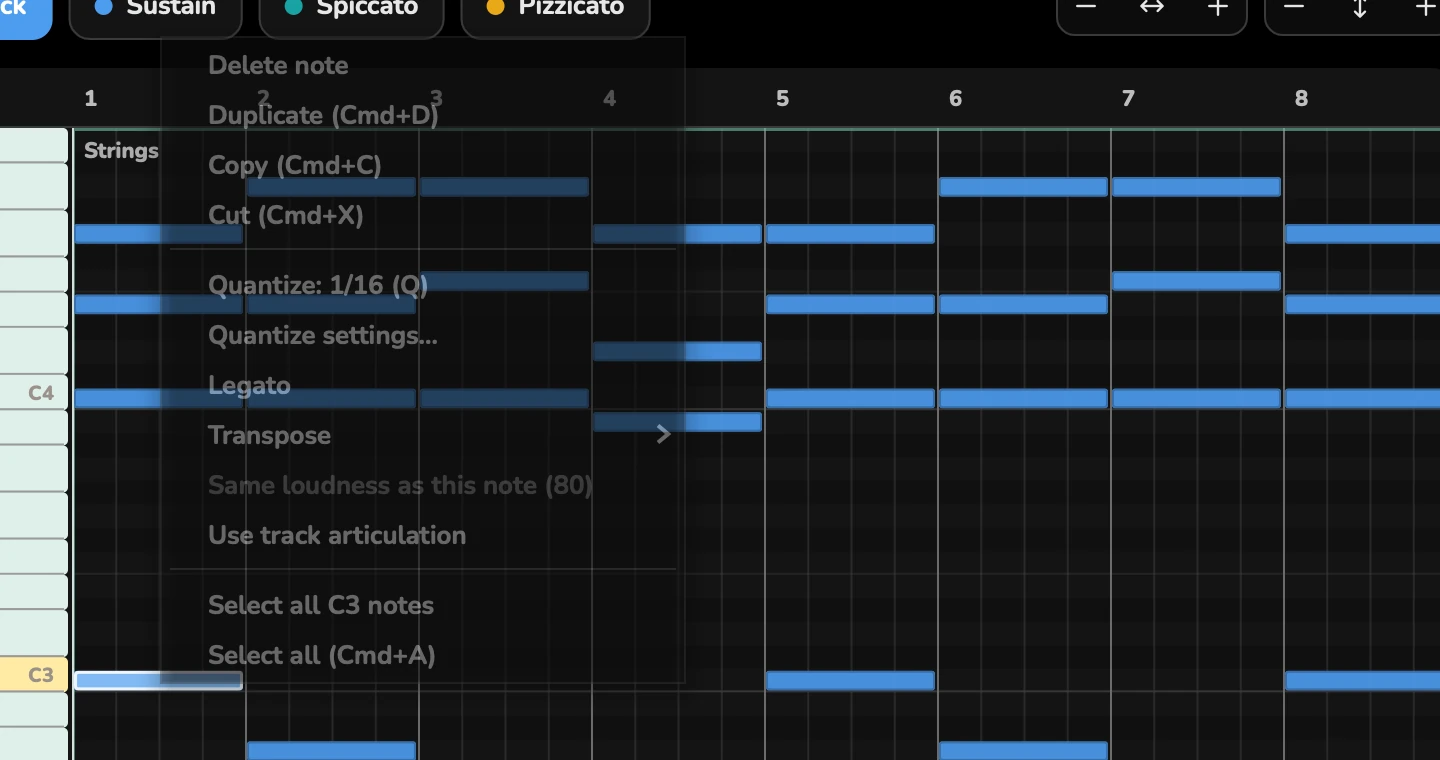
Right-click a note for:
- Legato: lengthens each selected note until the next note starts (within its clip; notes of a chord share a start)
- Change articulation and Use track articulation
- Delete, Duplicate, Copy and Cut
- Quantize
- Octave up and Octave down, Semitone up and Semitone down
- Same loudness as this note
- Select all
Articulations on notes
A track plays its own articulation, and any note can play a different one. Notes take their articulation’s color, so you can see how a part is played.
- Select the notes.
- Right-click one and choose Change articulation.
- Pick an articulation. Each one shows its keyswitch key.
Use track articulation sets the notes back to the track’s own. Notes the instrument can’t play are marked not played by this instrument.
When you click, draw or move a note, you hear it with its own articulation.
Quantize and humanize
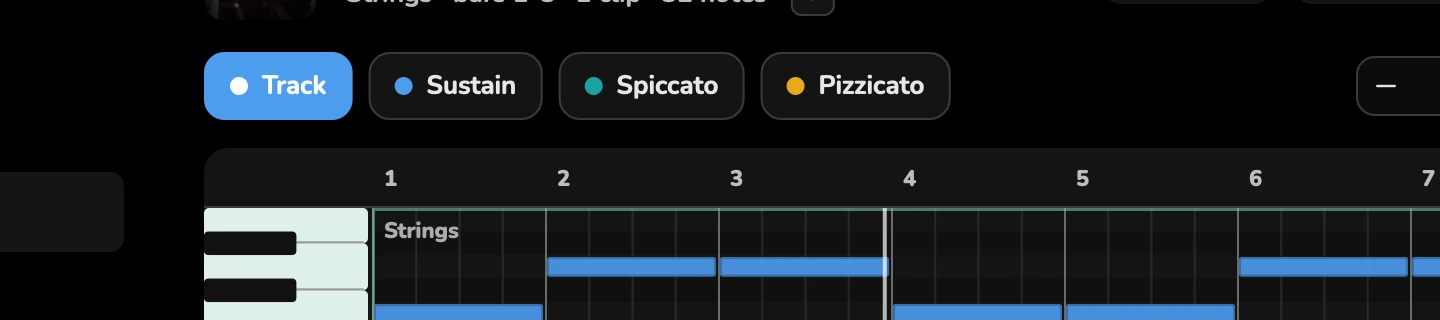
- Quantize (Q) moves each note’s start to the grid. Note lengths stay as you played them, unless Ends too is on.
- Quantize settings… has Strength and Swing.
- Humanize adds small timing variations.
- With notes selected, these work on the selection. With nothing selected, they work on the whole track.
You can also quantize a whole clip from its right-click menu on Tracks.
Loudness (velocity)
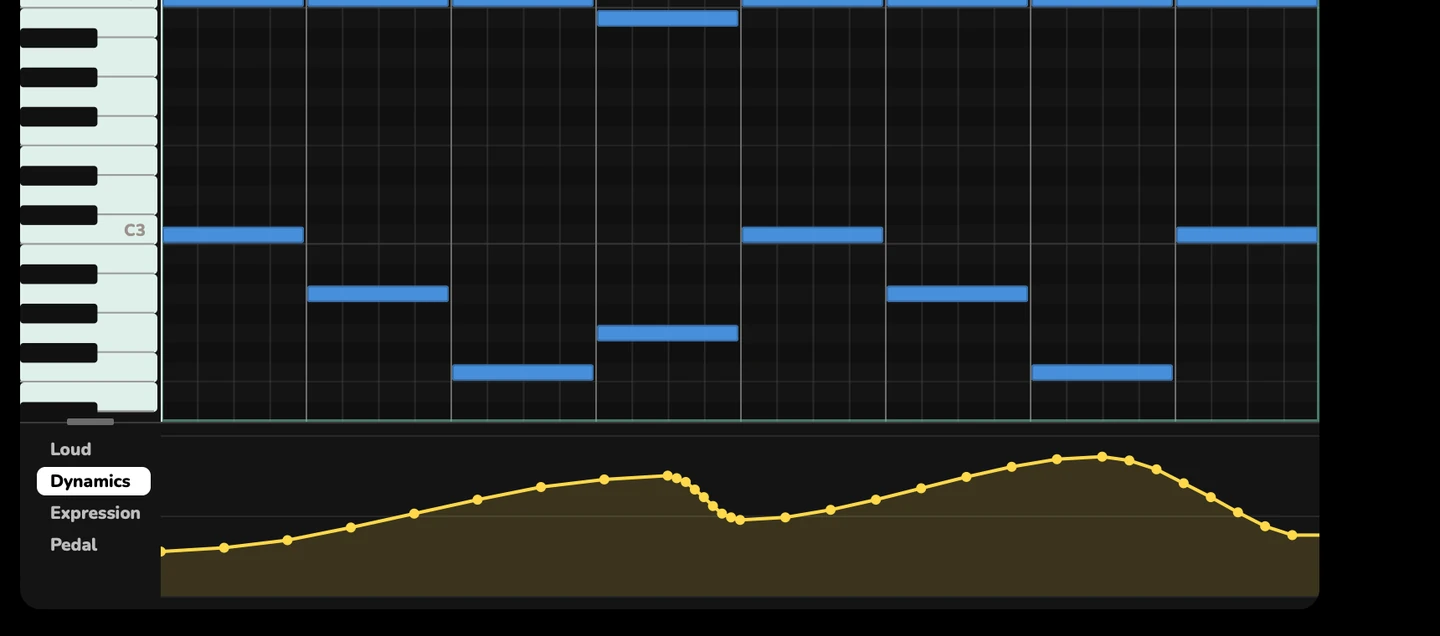
How hard each note is played is its loudness (velocity), shown in the loudness lane under the notes: Loud in the lane list.
- Drag a note’s loudness up or down, and hear it change as you drag.
- Draw across the lane to set several notes at once. Hold Shift to draw a straight line.
- Each note of a chord can be set on its own.
- Right-click a note and choose Same loudness as this note to match others to it.
Controller lanes
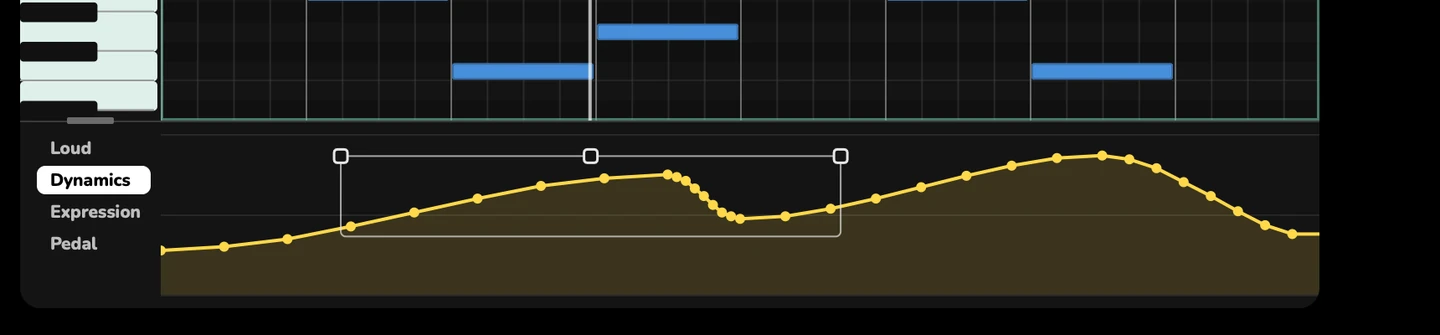
The lanes under the notes shape how the part is played over time.
| Lane | What it controls | Show it with |
|---|---|---|
| Loud | Each note’s loudness (velocity, not a CC) | Option+1Alt+1 |
| Dynamics | CC1 | Option+2Alt+2 |
| Expression | CC11 | Option+3Alt+3 |
| Sustain pedal | CC64 | |
| The instrument’s own controls | Its named controllers | |
| Transition level and Legato speed | On instruments that play legato, the CCs the track uses for them. See Legato | |
| CC and a number | Any other CC already used in a clip on this track |
When the lanes don’t all fit, More lists the rest. There’s no lane for a CC the track doesn’t use yet.
To shape a lane:
- Draw points, and values glide smoothly between them. Hold Shift to draw a straight line.
- CmdCtrl-drag inside a lane to select points, then Scale, Move or Tilt them.
- Drag the top edge of a lane to make it taller or shorter.
- Clear a lane in this clip, or clear every controller in this clip.
As the song plays, Studio’s knobs and sliders move to show what you hear.
Snap
Snap (G) lines up clips and notes to the grid. Choose the grid in View > Snap, or with the Snap control in the Piano Roll, under Snap clips and notes to:
| Choice | Snaps to |
|---|---|
| Auto | A grid that follows the zoom |
| Bars | Bars |
| Frames | The picture’s frames. Only when the song has a timecode. See Scoring to picture |
| 1/2 note to 1/32 note | Half, quarter, eighth, 16th or 32nd notes |
| 1/8 triplet, 1/16 triplet | Triplets |
| Off | Anywhere |
Note names
Musio names middle C as C4. To use C3 instead, choose View > Note Names > Middle C = C3, or change it in Settings > Language.