
Musio Studio manualChapter 3
Tracks, folders and clips
Add tracks, group them in folders, arrange clips, mark sections, and set the tempo and time signature.
On this page
The Tracks page (2) shows the whole song: every track, and its clips over time.
Add a track
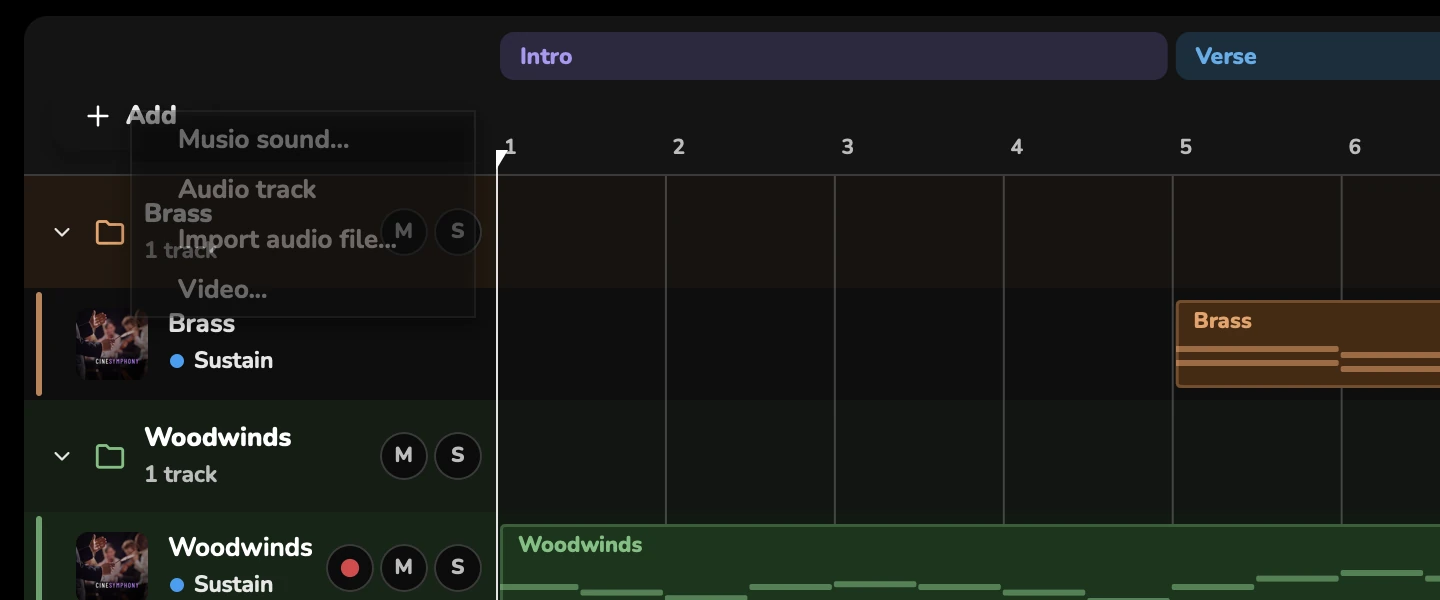
Choose Add, then:
- Musio sound… to add a track with a Musio instrument.
- Audio track to record audio, or drop an audio file on it.
- Import audio file… to add a track with an audio file on it.
- Video… to open a video for scoring to picture.
You can also press + Add on any sound in Sounds.
A new audio track says Arm it and press R to record, or drop an audio file on it. See Record audio.
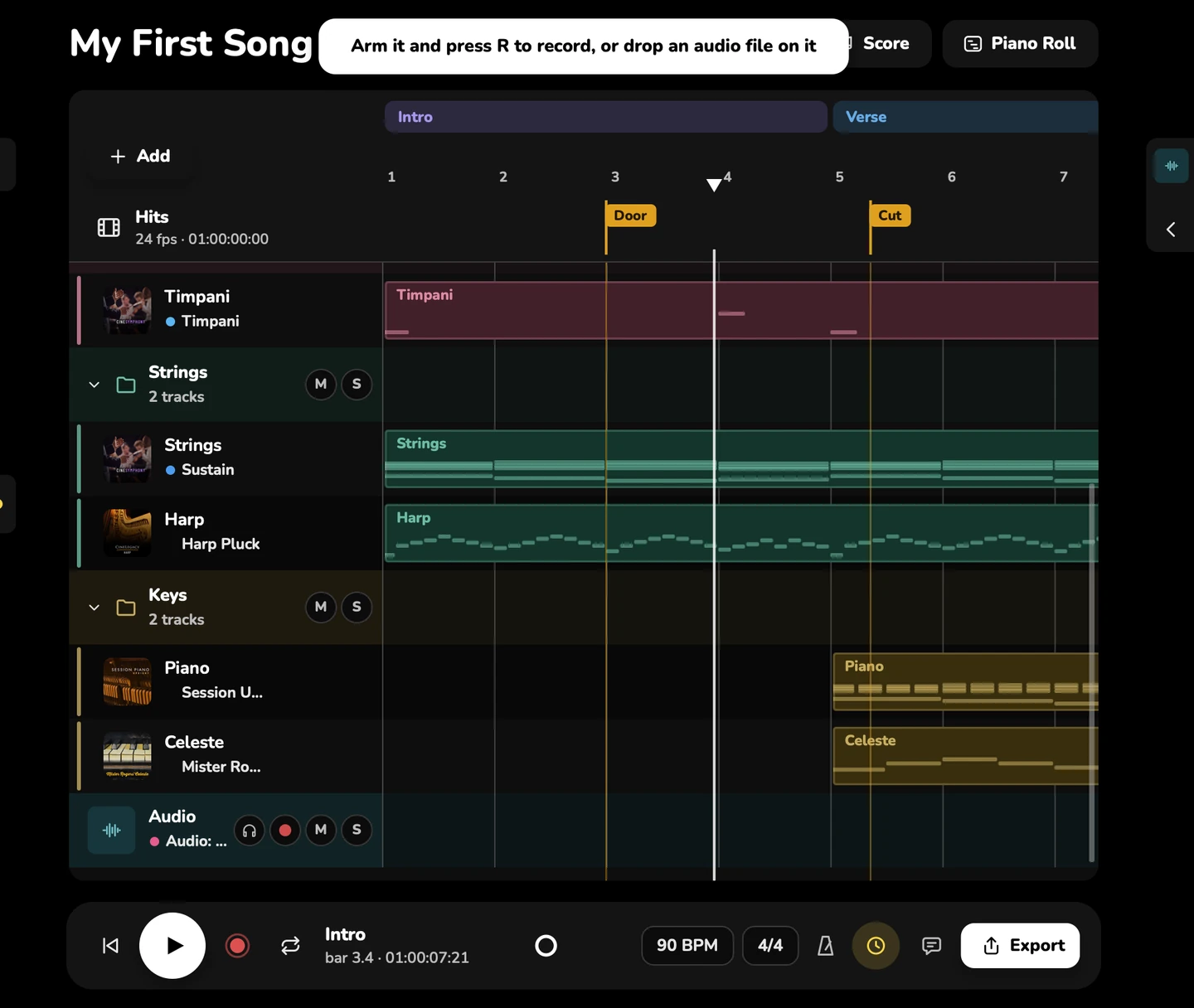
The track header
Each track’s header has its name, M (mute), S (solo), the arm button for recording, its input and its articulation.
- To rename a track, double-click its name. Drag the edge of the name column to fit long names.
- To change a track’s sound, choose Change sound…. Sounds opens and shows Choosing a sound for the track. Pick a sound, or choose Stop choosing.
- If a sound is still loading, you can stop it. If it isn’t on your computer, you can download it from the header.

- Track name
- Articulation
- Arm
- M (mute)
- S (solo)
Solo and mute
- Click S to solo a track and M to mute it.
- CmdCtrl-click S or M to solo or mute that track alone. OptionAlt-click clears every solo or every mute.
- While anything is soloed or muted, the transport bar says so. Click it to hear everything for a moment; your solos and mutes are kept.
Select, move and color tracks
- To select several tracks, Shift-click a range, or CmdCtrl-click to add or remove one.
- With several tracks selected, you can move their faders and pans together, and mute, solo, arm, delete, duplicate or drag them all at once.
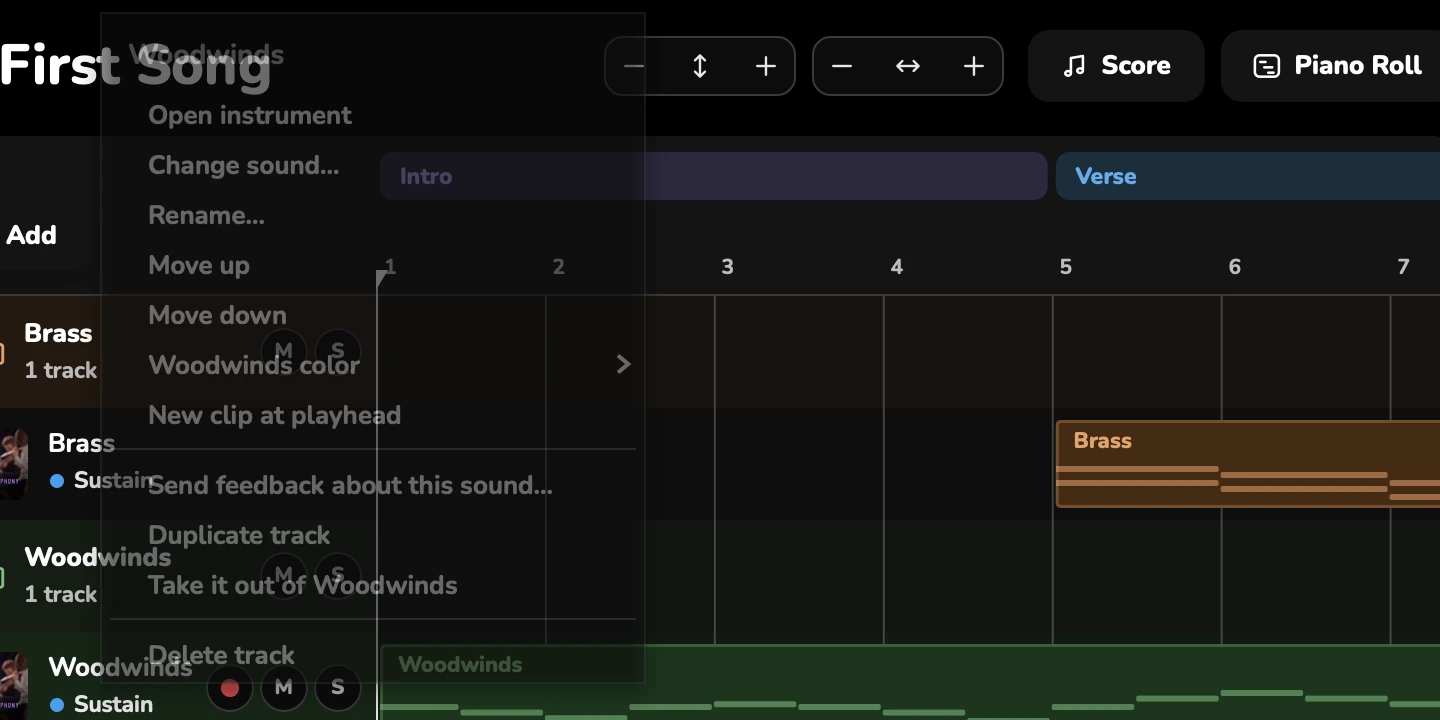
- To move a track, drag it, or right-click it and choose Move up or Move down.
Right-click a track for:
- Open instrument
- Move up and Move down
- Color: Green, Teal, Blue, Indigo, Purple, Magenta, Pink, Red, Orange, Amber, Olive, Brown, Gray or Default
- New clip at playhead
- Duplicate track
- New folder with it, or Take it out of its folder
- Delete track
- Send feedback about this sound…
With several tracks selected, the menu offers Duplicate, New folder with them and Delete for all of them.
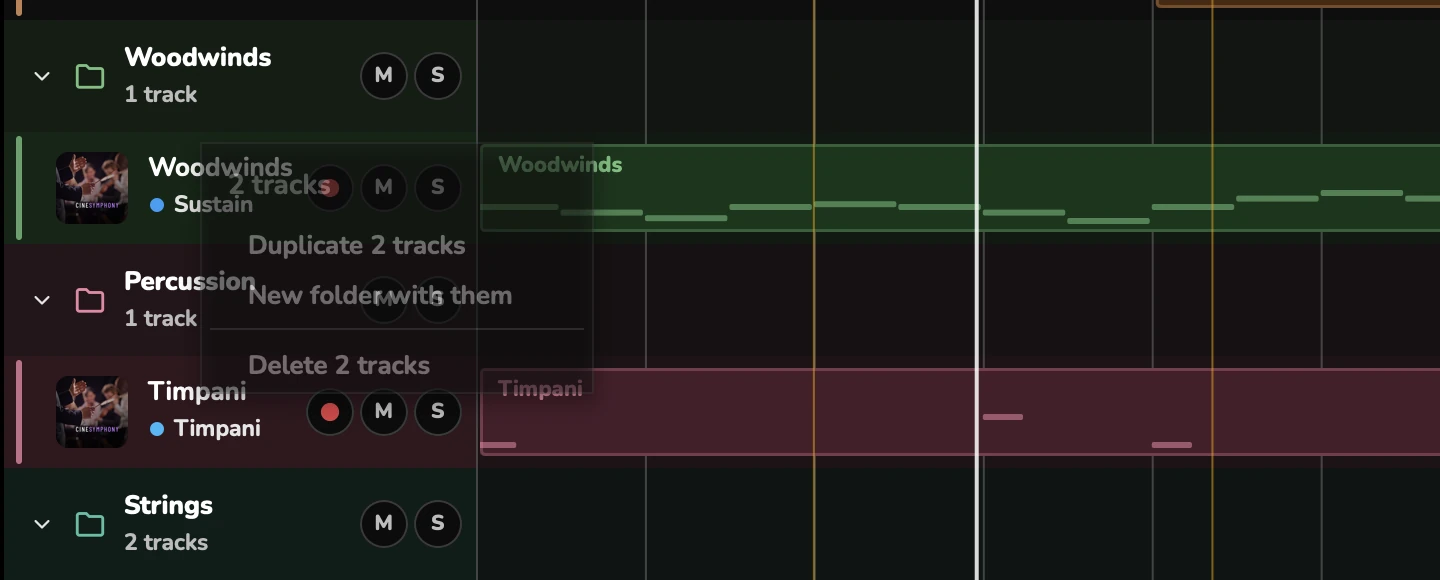
Duplicate track copies a track with its sound, mics, effects, sends, clips and notes. It’s also in the Edit menu, with no key of its own.
Folders
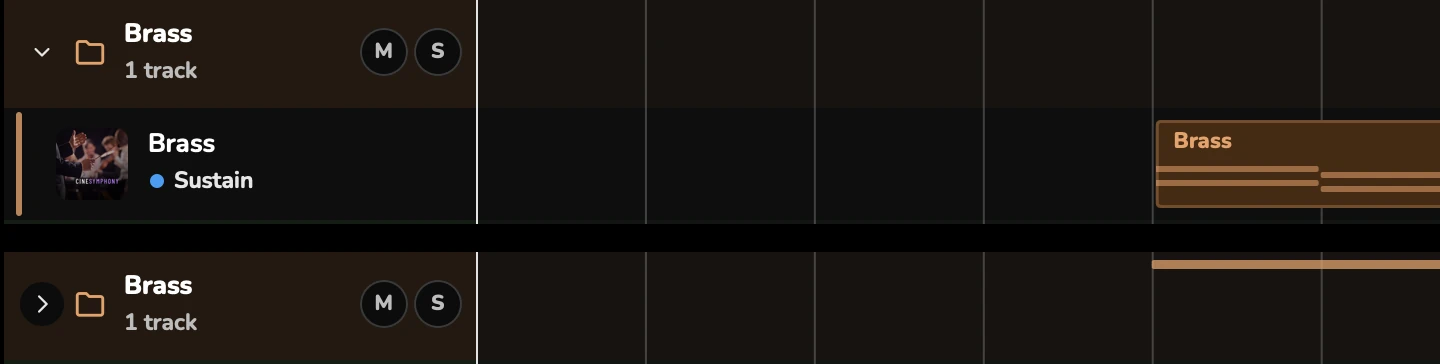
A folder groups tracks and works as a bus: it has its own fader, pan, effects, mute and solo, and its own strip in Mix.
- To make a folder, right-click a track and choose New folder with it, or select several tracks and choose New folder with them.
- Fold it to one row shows the folder as a single row, and Show its tracks opens it again.
- To move a folder with all its tracks, drag it by its header.
- You can mute or solo a whole folder, Rename… it, or Remove the folder (its tracks stay).
New songs put each instrument family in its own folder. Songs you made before folders existed play exactly as they did.
Clips
A clip holds a part’s notes, or a piece of audio, on a track.
| Do this | How |
|---|---|
| Move a clip | Drag it |
| Trim its start or end | Drag either edge. Hold Shift to trim off the grid |
| Repeat it | Drag its end handle |
| Split clips at the playhead | Cmd+TCtrl+T |
| Duplicate | Cmd+DCtrl+D |
| Select every clip | Cmd+ACtrl+A |
| Delete | Delete |
Trimming a clip’s start hides the notes before it rather than deleting them. Drag the start back and they return.
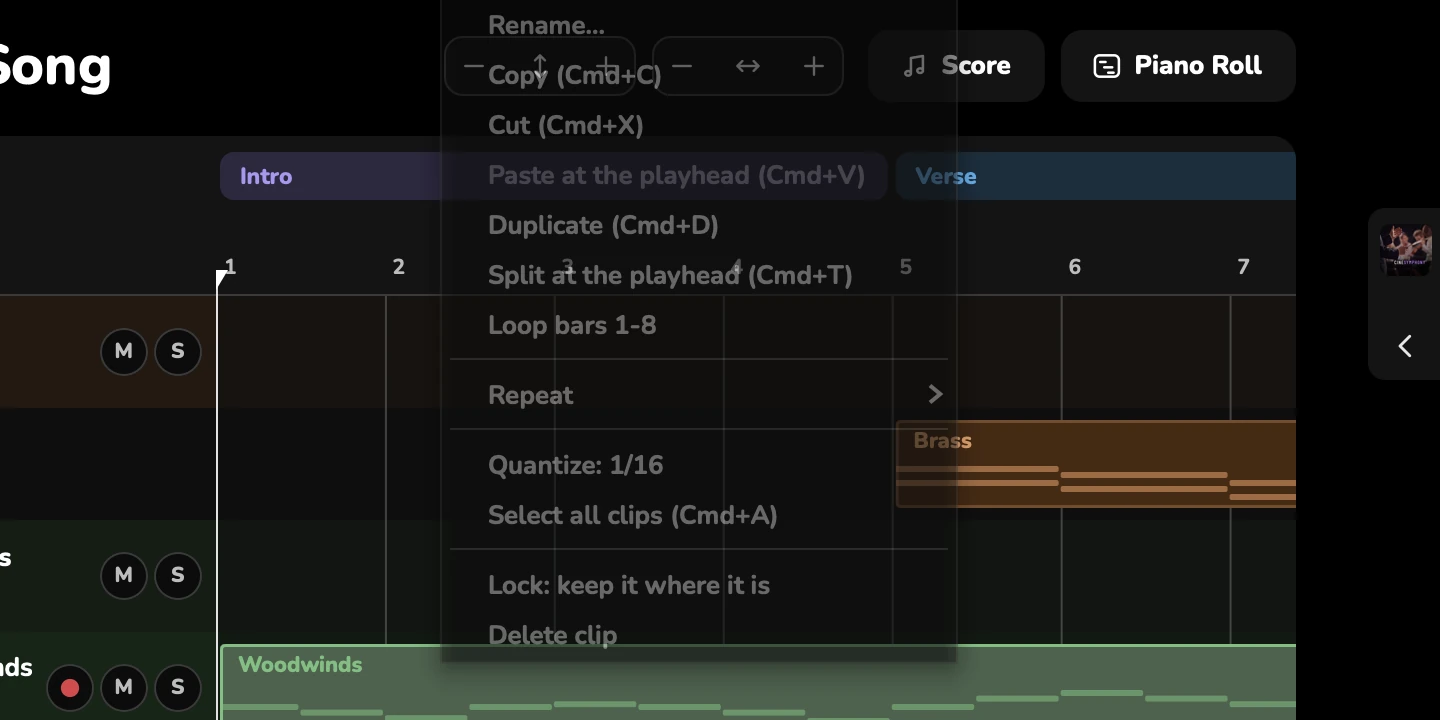
Right-click a clip for:
- Edit notes (or Edit audio), and Edit notes in the full Piano Roll
- Copy, Cut, Paste at the playhead and Duplicate
- Split at the playhead and Join into one clip
- Repeat: a number of times, Stop repeating, or Turn the repeats into clips
- Quantize to the grid
- Select all clips
- Lock, to keep it where it is (and Unlock)
- Rename clip and Delete
Cmd+TCtrl+T (Edit > Split Clips at Playhead) splits clips, not single notes: a note that crosses the playhead ends there in the first clip, and the rest of it goes into the new clip. There’s no command to split one note.
Audio clips
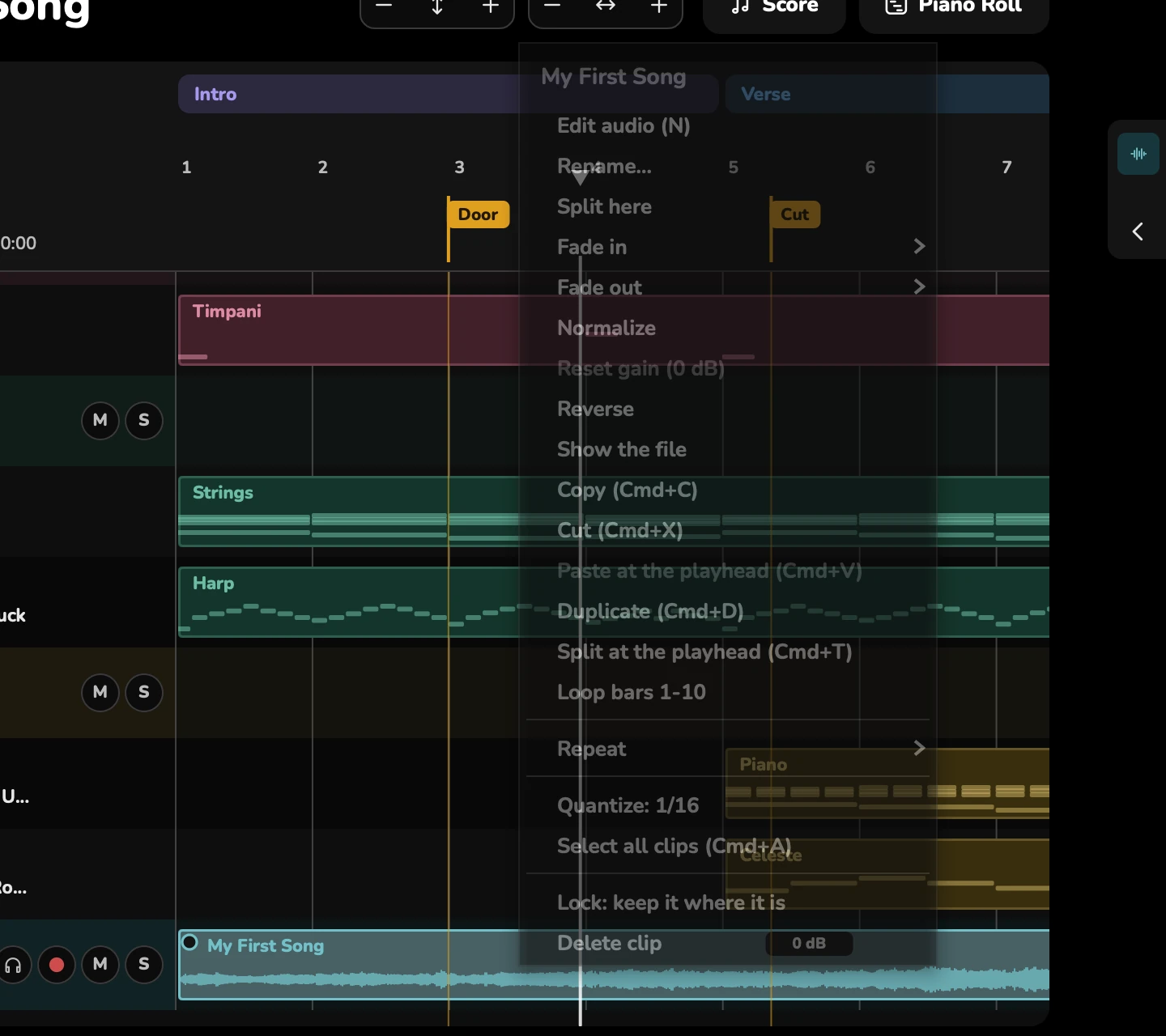
Audio clips move, trim, split and repeat like other clips. They also have:
- Fade in and Fade out handles. Right-click a fade to choose its shape, or double-click it for no fade.
- Clip gain, Normalize and Reset gain.
- Reverse.
- Show the file, to find the audio file on your computer.
Studio opens WAV, AIFF, MP3, FLAC, OGG, M4A and CAF files.
Sections
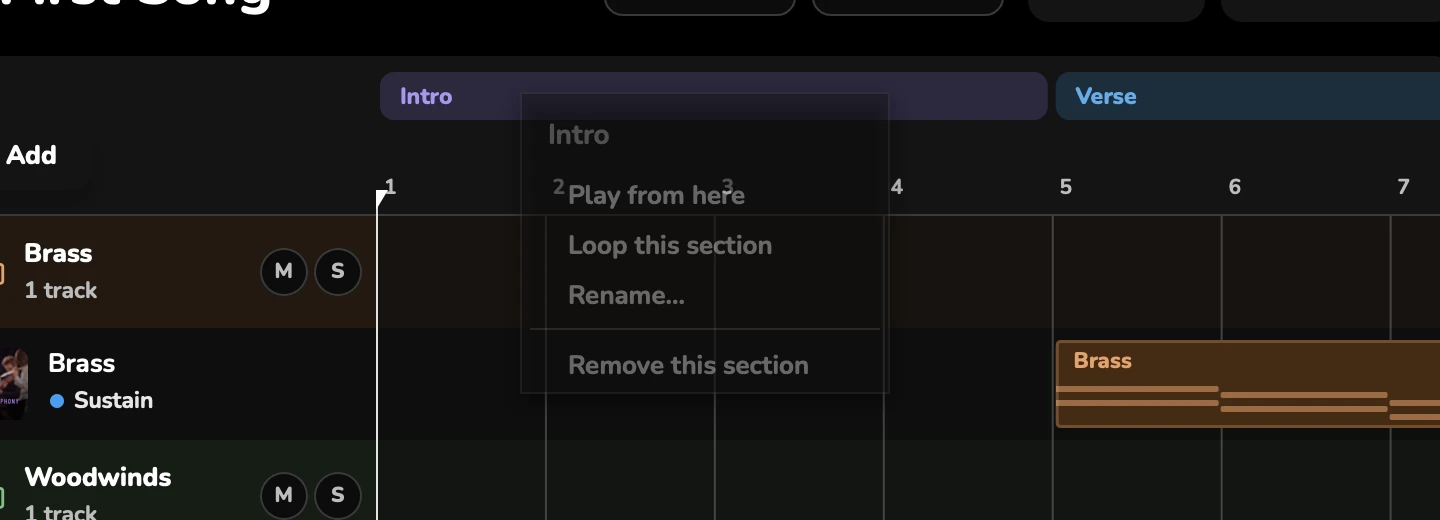
Sections name the parts of a song along the top of Tracks.
- Click the ruler where a section starts.
- Choose a name: Intro, Verse, Pre-Chorus, Chorus, Bridge, Build, Climax, Outro, or Another name….
Drag a section to move it or change its length. A section’s menu has Rename, Play from here, Loop this section and Remove.
Tempo and time signature
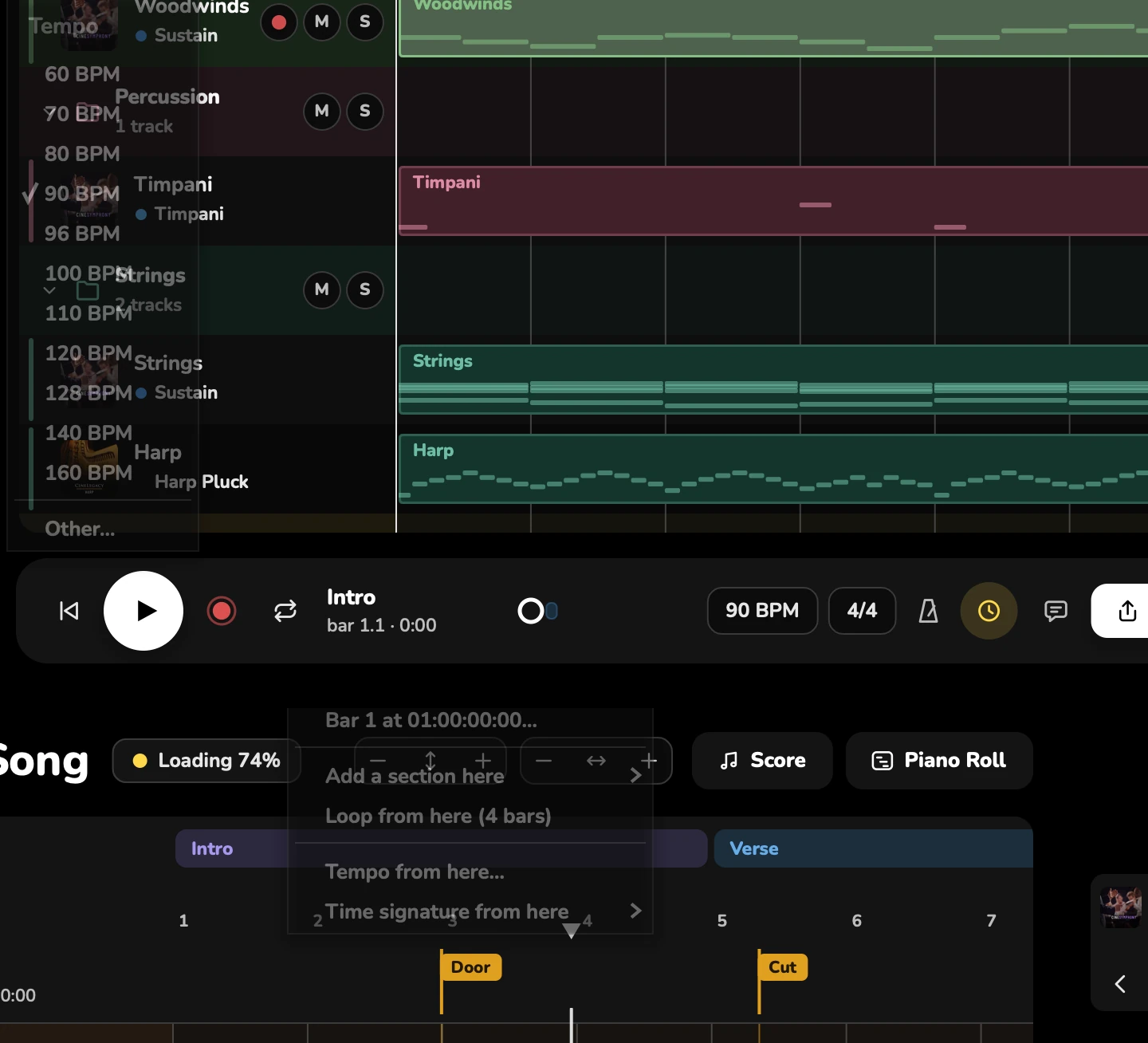
The tempo and time signature are on the transport bar. To change one partway through the song, choose Change from bar…. Other… sets any time signature.
Right-click the ruler for:
- Add a section here
- Loop from here (4 bars)
- Tempo from here… and Time signature from here
- removing a tempo or time signature change
The ruler can show bars, timecode, or minutes and seconds (View > Minutes and Seconds in the Ruler).
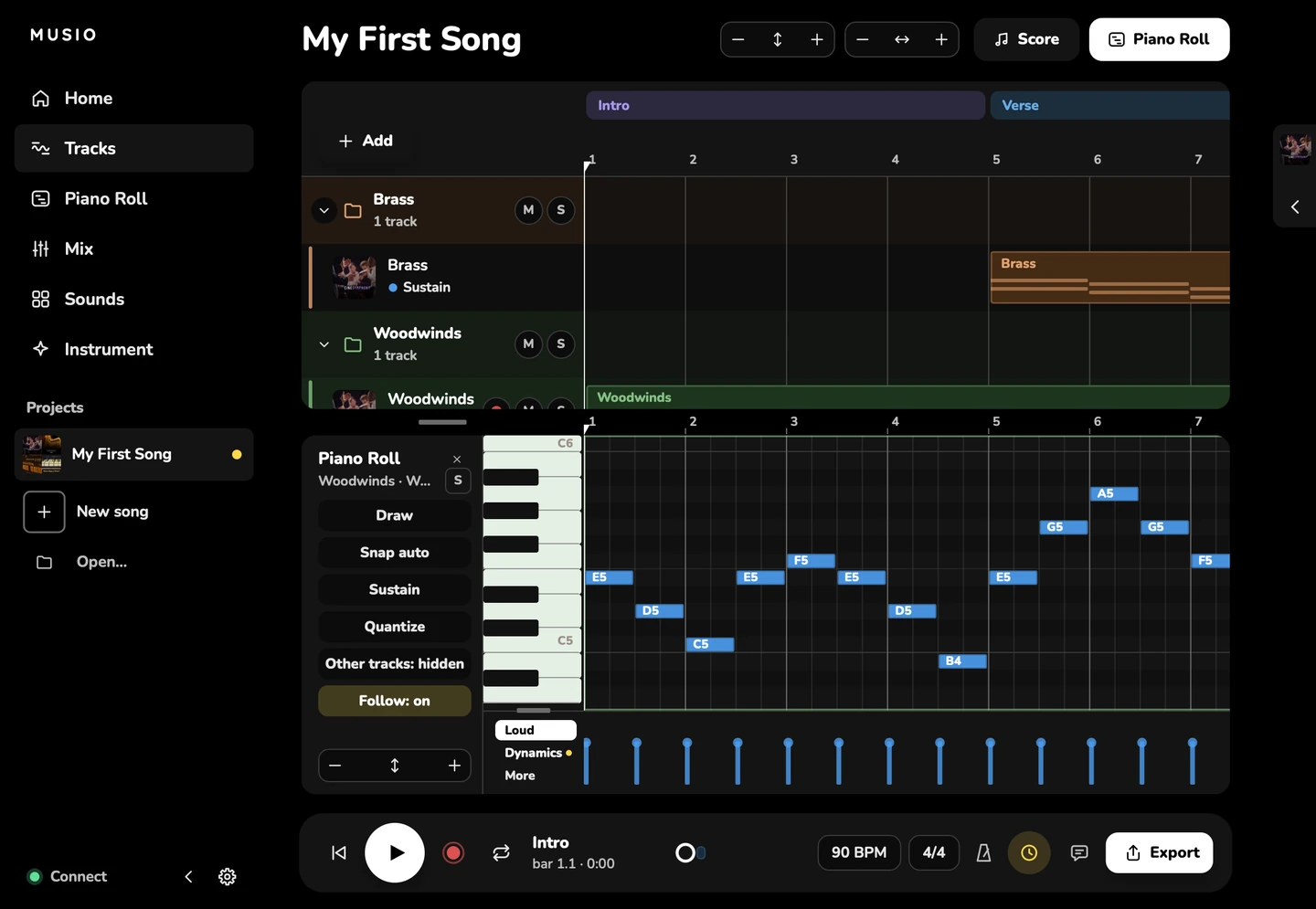
Notes under the tracks
Press N to show the Piano Roll under the tracks, so you can edit a track’s notes without leaving Tracks. It shows the selected track. See Piano Roll.
Download what a song needs
When a song uses sounds or mics that aren’t on your computer, the top of Tracks offers to get them:
- every sound the song uses that isn’t on this computer yet;
- the mics the song has turned on that aren’t on this computer;
- updates for its sounds. Your notes and settings stay.
Downloads go through Musio Connect and don’t stop playback. See Downloading.