
Musio Studio manualChapter 4
Sounds and your library
Find, preview and add Musio sounds, download them and their mics, see which ones you can play, and swap in stand-ins.
On this page
The Sounds page (5) has every Musio sound. Musio > Browse Sounds opens it too.
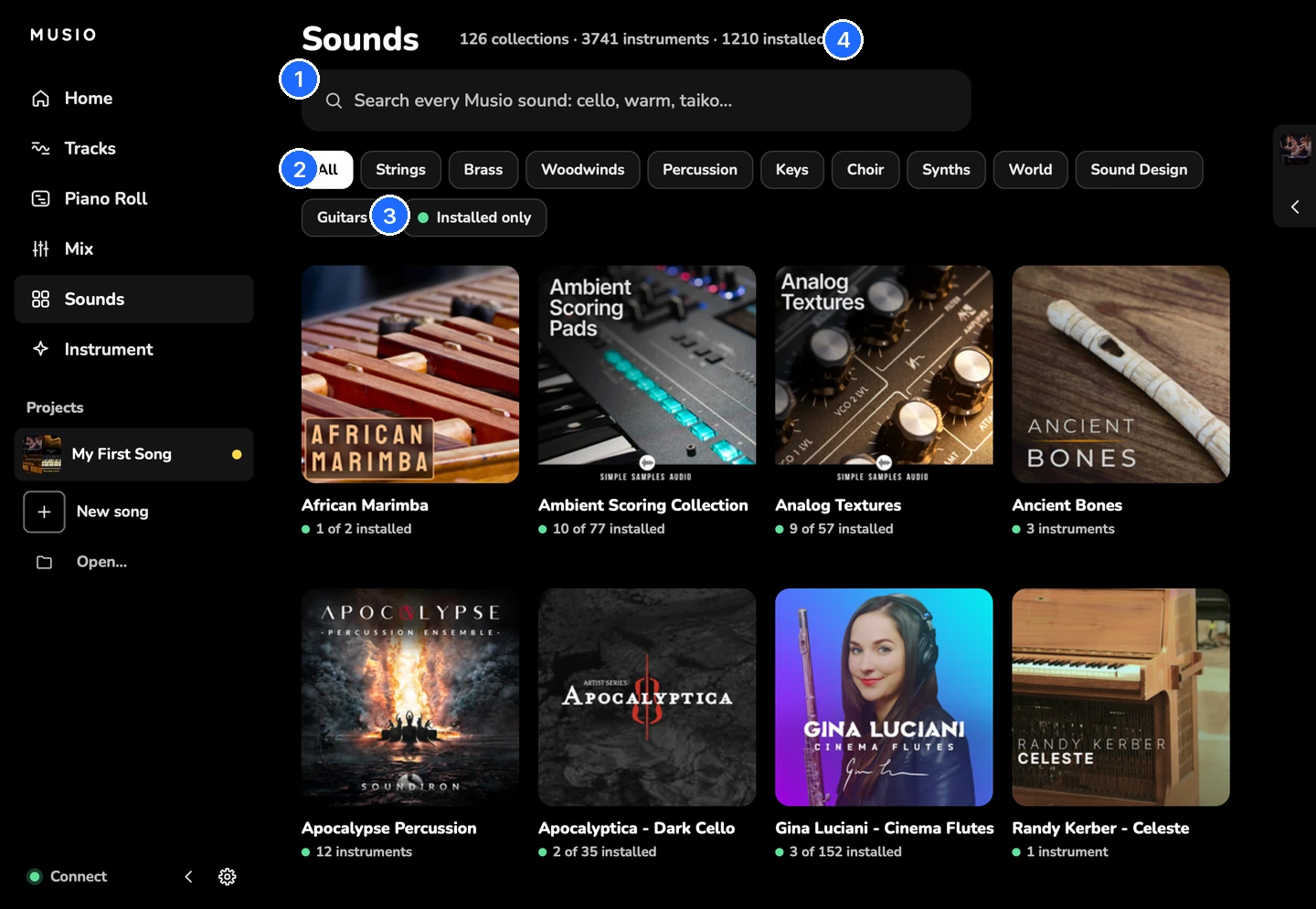
- Search every Musio sound
- Categories
- Installed only
- How many sounds are installed
What you can play
What you can play depends on your Musio account:
- Free sounds: every account can play Musio’s free collections. Choose the Free Sounds template on Home to start a song with all of them.
- Collections you own: anything you’ve bought in the Musio store.
- Musio Complete: every Musio instrument, including new releases, in Musio Studio and in the Musio plugin. See Plans and your account.
Sounds you can’t play yet say Not in your library, with Get: get them in the Musio store, or with Musio Complete. You can still preview them.
The free collections are African Marimba, Ancient Bones, CineLegacy: Harp, CineLegacy: Percussion, CineSymphony, Create Series: Accent Pianos, Create Series: Kalimba, Create Series: Tonal Tickies, Create Series: Tongue Drum, Create Series: Toy Xylo, Create Series: Twisted Psaltry - Cinematic FX, Handbells, Mister Rogers’ Celeste, Session Piano - Upright, Village Drums, Village Mallets, Vintage Drum Machine: LinnDrum and Vintage Synthesizer: Prophet 5.
Find a sound
- Search finds sounds by name or by what they sound like: try “cello”, “warm pad”, “taiko” or “spiccato”.
- Categories: All, Strings, Brass, Woodwinds, Percussion, Keys, Choir, Synths, World, Sound Design and Guitars.
- Installed only shows the sounds already on your computer, and Favorites shows the ones you’ve hearted.
- Collections shows Musio’s collections. Choose All collections to see every one.
The top of the page shows how many of the sounds are installed.
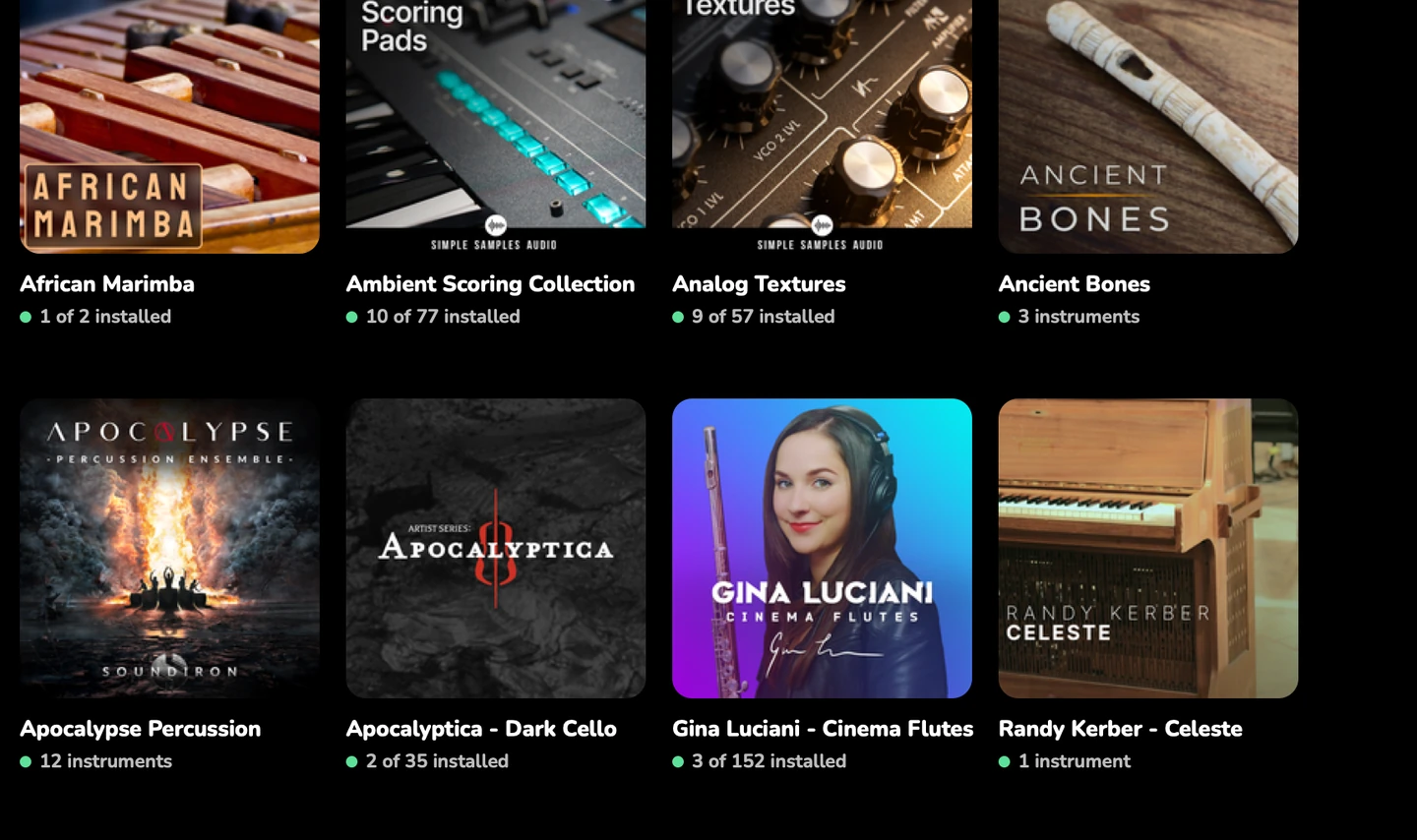
Preview and add a sound
Each sound has:
| Button | What it does |
|---|---|
| Preview | Plays a short preview |
| Heart | Adds it to your Favorites |
| + Add | Adds a new track with this sound. It downloads first if it isn’t on your computer |
| Use on a track | Replaces the sound on that track |
| Download | Downloads it without adding it. Cancel download stops it |
| Get | Gets it in the Musio store, or with Musio Complete |
A star marks keyswitch patches: sounds that hold many articulations in one.

Change a track’s sound
- Choose Change sound… on the track, or Choose sound in the Track Panel.
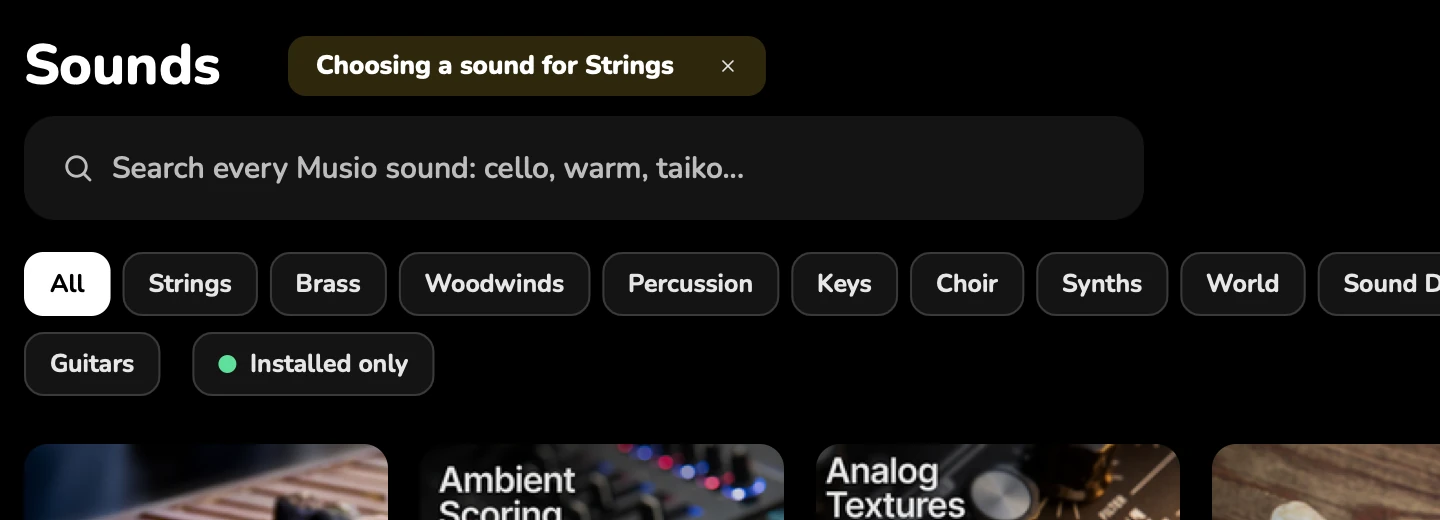
- Sounds says Choosing a sound for your track.
- Choose Use on the track for the sound you want. To leave the track as it was, choose Stop choosing.
Stand-ins
A song can have parts written for instruments you don’t own, for example after you import a MIDI file. Those parts play on a stand-in: the nearest sound you own.
- A stand-in’s track says which instrument the part was written for, and so does the Track Panel.
- A stand-in shows a check mark when you own its real instrument, and a lock when you don’t.
- Swap in puts the real instrument on the track. Get gets it from the Musio store or with Musio Complete.
- Tracks also offers Replace the stand-ins, Hear the real instruments and Get the instruments these parts were written for.
Download sounds
Musio Connect downloads and installs sounds for Musio Studio and the Musio plugin. They share one library, so a sound you download in one is ready in the other.
- A sound downloads when you add it, or when you choose Download. Downloads don’t stop playback.
- For a whole song, Tracks offers to download every sound it uses that isn’t on your computer yet.
- The sidebar shows what’s downloading.
- Waiting for Musio Connect means the download starts once Musio Connect is ready. See Waiting for Musio Connect.
- If a download fails, click it to try again. See A download failed.
Sizes
Sizes show in MB, or in GB with one decimal from 1 GB up. A collection’s size counts every sound and every mic in it, but Musio Connect usually downloads only the default mics, so what you download is usually smaller.
Mics
Many Musio instruments were recorded with several microphones, such as close, room and surround. Each mic downloads separately.
- Musio Connect downloads the mics chosen in its Settings > Mic Positions to Download by Default.
- To add another mic to a track, turn it on in the track’s Mics, and download it there.
- A song from another computer may use mics you don’t have. Its tracks play a mic you do have, and the top of Tracks offers to download the song’s own mics.
Sound versions
A Musio instrument can have several versions. A track keeps the version it was made with, so your song keeps sounding the same.
- When a newer version is ready, the Track Panel and the Instrument page say so. Choose Update to update it. Your notes and settings stay.
- When a song needs a version that isn’t on your computer, downloading the song’s sounds gets that version.
Favorites
Heart a sound to find it again quickly. Then turn on Favorites in Sounds to see only those.
Where your sounds are kept
Musio Connect keeps your sounds in one folder for every Musio app.
- To see where, open Musio Connect and look at Samples location under Instruments.
- Everyone who uses the computer shares this location, so choose one they can all reach. Musio Connect warns you if the new place is inside one person’s home folder.
Move your sounds
Move…, next to Samples location, moves every sound to another drive or folder and keeps them working.
- Close Musio Studio, the Musio plugin in your music software, and the standalone Musio app.
- Wait for any installs, uninstalls or file checks in Musio Connect to finish. Move isn’t available while they run.
- Choose Move… and pick the new folder. If it isn’t called Musio Samples, Musio Connect makes a Musio Samples folder inside it.
- Follow the progress in the Move Samples window. When it’s done, it says the sounds were moved, and Samples location shows the new place.
- While it’s moving, the button stops the move. If a move fails, your sounds stay where they were.
- If some files couldn’t move, Musio Connect says they remain at the old location. Files left there aren’t deleted for you.
Use sounds you already have
There’s no separate Reconnect button. If your sounds are already in a Musio Samples folder, for example on a drive from another computer or after reinstalling, choose Move… and pick the folder that holds Musio Samples. If the old location can’t be reached, Musio Connect changes the location without copying anything.