
Musio Studio manualChapter 17
Troubleshooting
What to check when a track is silent, Musio Connect is waiting, a download fails or a sound isn't authorized, and how to send us a report.
On this page
- A track makes no sound
- “Waiting for Musio Connect”
- A download failed
- A sound isn’t authorized
- Crackles, dropouts or a slow song
- Notes sound early or late
- Fast repeated notes are hard to hear
- A video won’t open
- Studio closed unexpectedly
- Voice commands don’t work
- The interface is too small or too big
- Send feedback
- Contact Musio Support
A track makes no sound
Check these in order:
- Musio Connect is running and signed in. Open it with Musio > Open Musio Connect.
- The sound is yours and downloaded. If the track says it isn’t in your library, or that it needs downloading, choose a sound you own or download it. The mic it uses needs to be downloaded too.
- Solo and mute. Is the track muted, or another track soloed? The transport bar says when solos or mutes are on.
- Levels. Check the track’s level and the master in Mix, and that the Expression lane isn’t at zero.
- The audio output in Settings > Audio & MIDI.
- A song from another computer may use mics you don’t have. Download them from the top of Tracks.
“Waiting for Musio Connect”
Musio Connect downloads your sounds and checks what your account owns, for every Musio app.
- Open Musio Connect: Musio > Open Musio Connect.
- Make sure you’re signed in and it’s ready. Downloads and sounds start once it is.
Closing Musio Connect’s window doesn’t quit it.
A download failed
- Click the failed download to try again.
- Check your internet connection.
- Check the free space on the drive your sounds go to. To see which drive, open Musio Connect and look at Samples location under Instruments.
- Make sure the mic and the version the track needs are downloaded.
- If a sound still won’t load, select it in Musio Connect > Instruments and choose Verify Files or Repair.
Downloads can be paused, resumed and stopped in Musio Connect. Don’t reinstall Musio as a first step.
A sound isn’t authorized
Musio Connect shows Not authorized on any instrument your account can’t use.
- Check which email you’re signed in with in Musio Connect. It needs to be the email you bought with.
- Compare it with Licenses at musio.com/portal. Signing in with a different Google email can make a different account, without those licenses.
- Sign out and sign back in with the account that owns the sound.
If it’s still locked, write to us. Don’t buy it again or make another account to fix it.
Crackles, dropouts or a slow song
- In Musio Connect > Settings, turn on Enable Additional Voice Killing.
- In the same place, a larger Sample Preload Size uses more memory and is easier on your drive.
- Keep your sounds on a fast drive, such as an SSD.
- On Windows, try Settings > General > Draw With the Graphics Card. Off is faster on most computers.
If Studio still struggles, choose Musio > Record a Performance Report… while it’s happening. Studio records a timed report while you scroll, play and move faders, then hands it to Send Feedback. Tell us about your computer, your audio settings and the drive your sounds are on.
Notes sound early or late
- Check Transport > Delay Compensation. It’s off in songs made before Musio 2.0.5.
- For one track, use its Delay knob in the Track Panel.
See Timing.
Fast repeated notes are hard to hear
Turn on Transport > Clean Repeated Notes. It’s on in new songs; older songs can turn it on.
A video won’t open
ProRes on Windows, DNxHD and DNxHR, MXF, MKV, AVI, and any video on Linux need FFmpeg installed on your computer. Studio doesn’t include it. QuickTime and MP4 on a Mac, and MP4 on Windows, open without it. See Videos that need FFmpeg.
Studio closed unexpectedly
- Open Musio Studio again. It offers your unsaved work back: choose Recover.
- Choose Musio > Send Feedback… and tell us what happened.
Voice commands don’t work
- Turn them on in Settings > Voice Commands, and check that you’re online.
- On a Mac, voice commands need macOS 13.3 or newer.
- Check the microphone there, under Voice Microphone.
- On a Mac, Musio Studio needs the microphone: System Settings > Privacy & Security > Microphone > Musio Studio.
See Voice commands.
The interface is too small or too big
Change View > Interface Size, or Settings > Appearance. See Appearance.
Send feedback
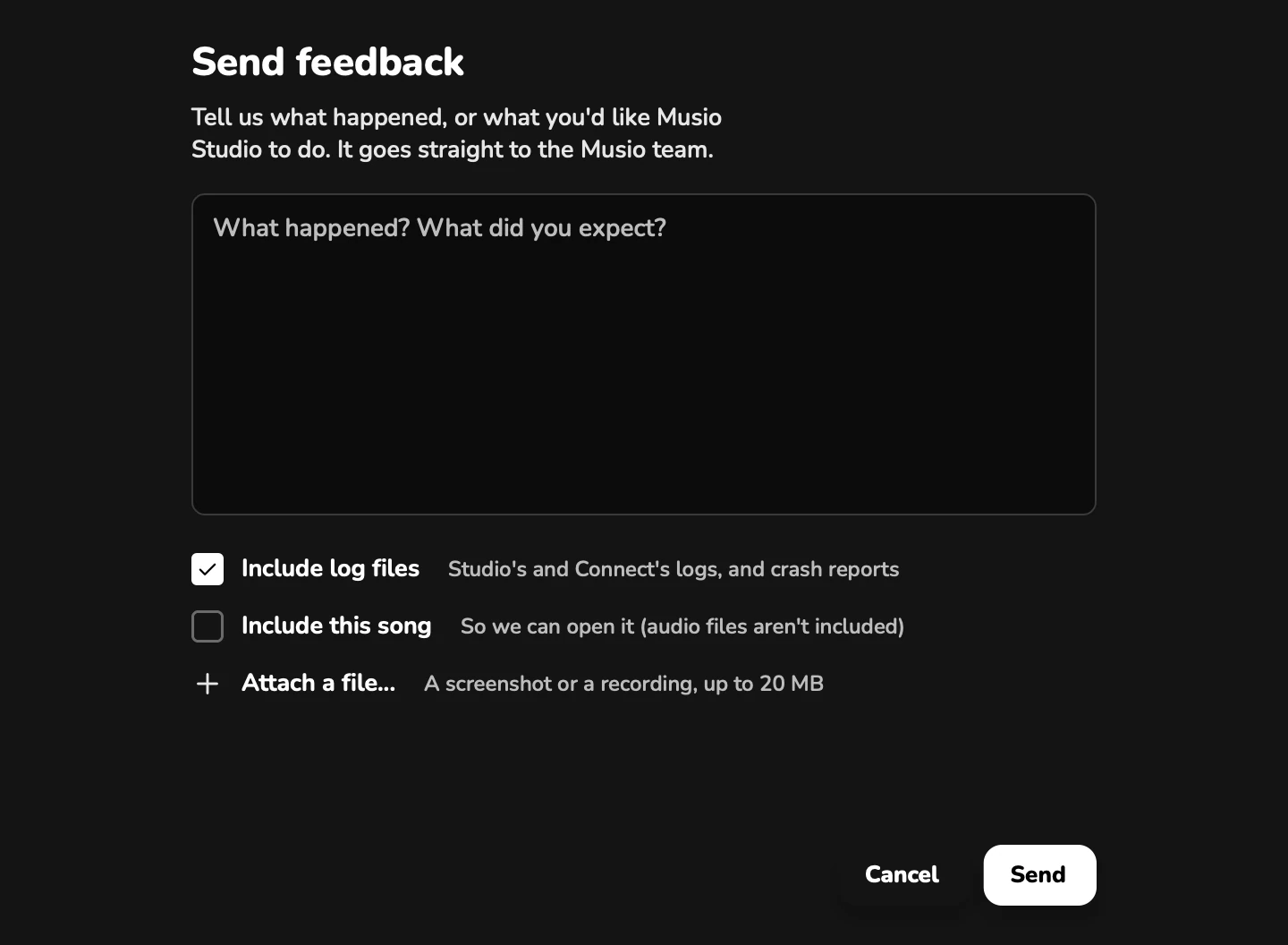
To report a problem, choose Musio > Send Feedback…, or Send feedback on the transport bar. To report a problem with one sound, right-click its track and choose Send feedback about this sound…: it goes to the Musio team with the sound’s name and version.
- Include log files adds Studio’s and Musio Connect’s logs and crash reports.
- Include this song adds the song. Its audio files aren’t included.
- Attach a file… adds a screenshot or a recording.
Feedback is sent through Musio Connect, so it needs to be running and signed in.
Contact Musio Support
Write to us, or ask Musio Support in the chat on this page. It helps to tell us:
- your computer and its operating system version;
- your Musio version (it’s at the bottom of the Musio menu);
- the exact message you see;
- the steps that lead to the problem;
- the instrument and its version, if it’s about a sound.