
Musio Studio manualChapter 15
Settings
Every section of Musio Studio's Settings, from the theme and interface size to audio devices, MIDI keyboards, language and voice commands.
To open Settings, choose Musio > Settings… (Cmd+,Ctrl+,), or click the Settings gear in the sidebar. On a Mac, Settings… is also in the Musio Studio menu.
Appearance
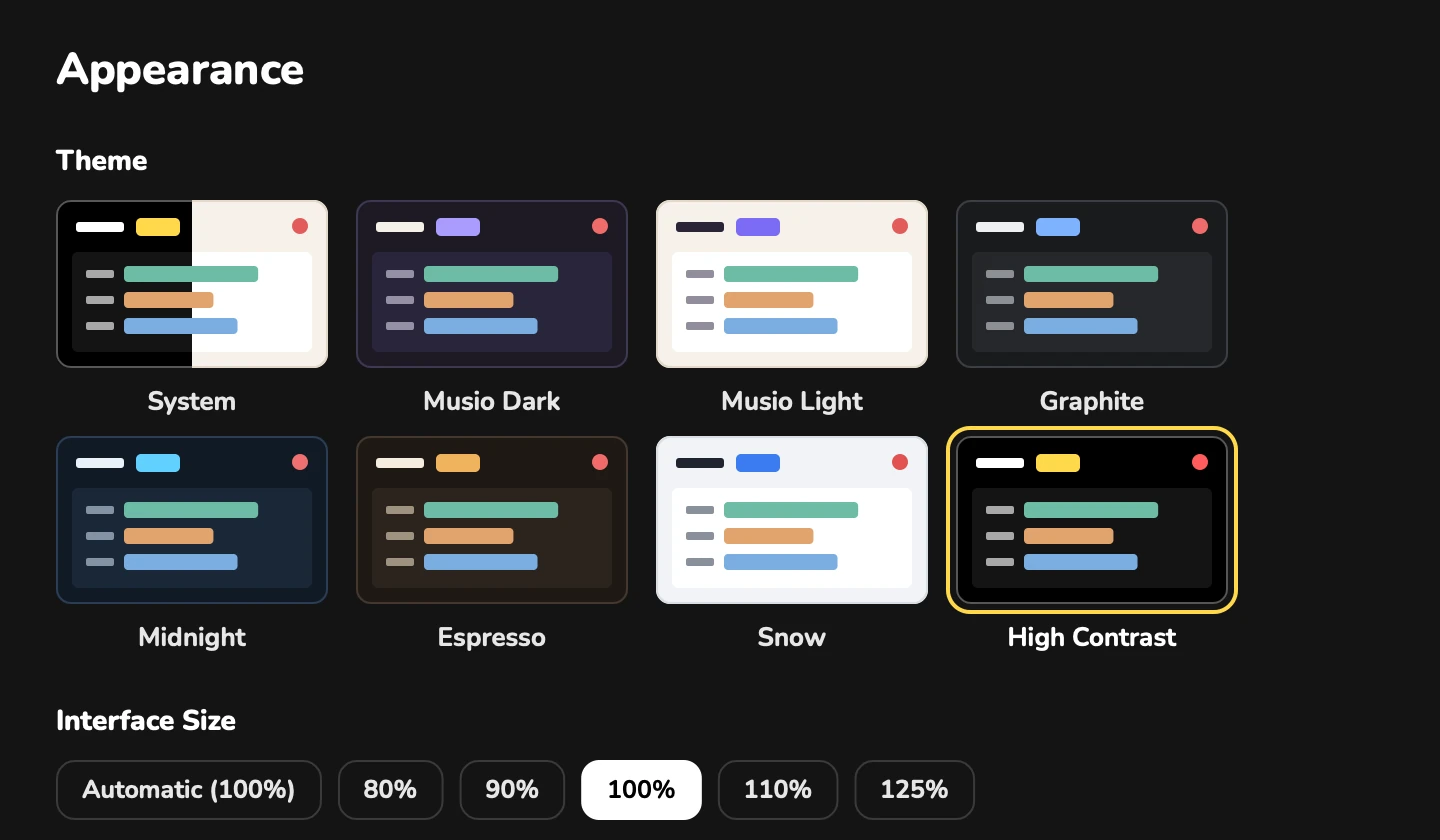
- Theme: System, Musio Dark, Musio Light, Graphite, Midnight, Espresso, Snow or High Contrast. System follows your computer’s light or dark mode.
- Interface Size: Automatic, or 80, 90, 100, 110 or 125%. On Linux it goes up to 150, 175 and 200%.
- Tooltips: Show or Hide.
These are in the View menu too: Appearance, Interface Size and Show Tooltips.
Audio & MIDI
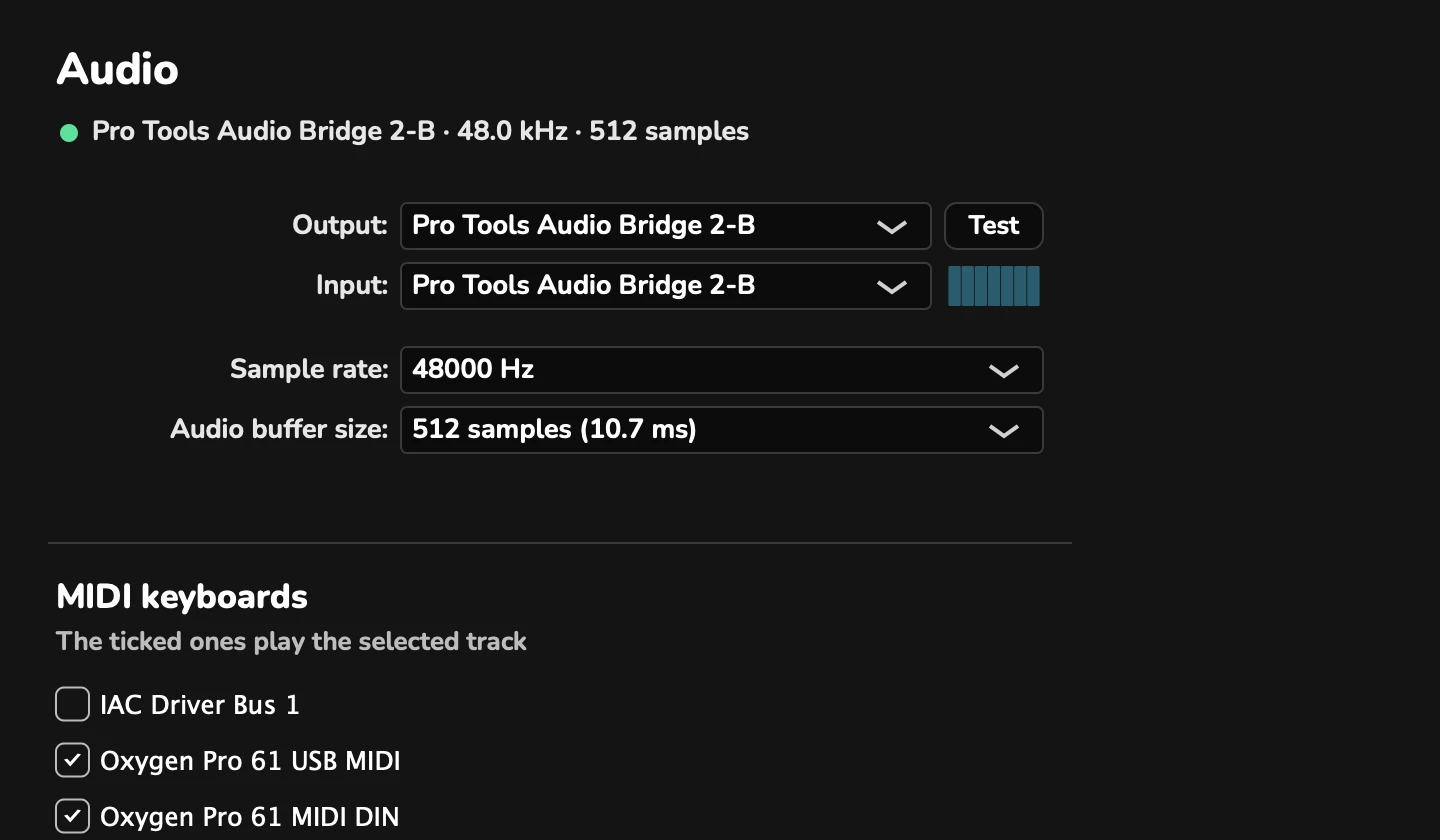
- Audio: the audio output and input devices, the sample rate, and the buffer size in samples. If a device isn’t responding, Studio says so.
- MIDI keyboards: the ticked ones play the selected track. If none is connected, Studio says No MIDI keyboard found.
File > Audio & MIDI Settings… opens this section too.
Language
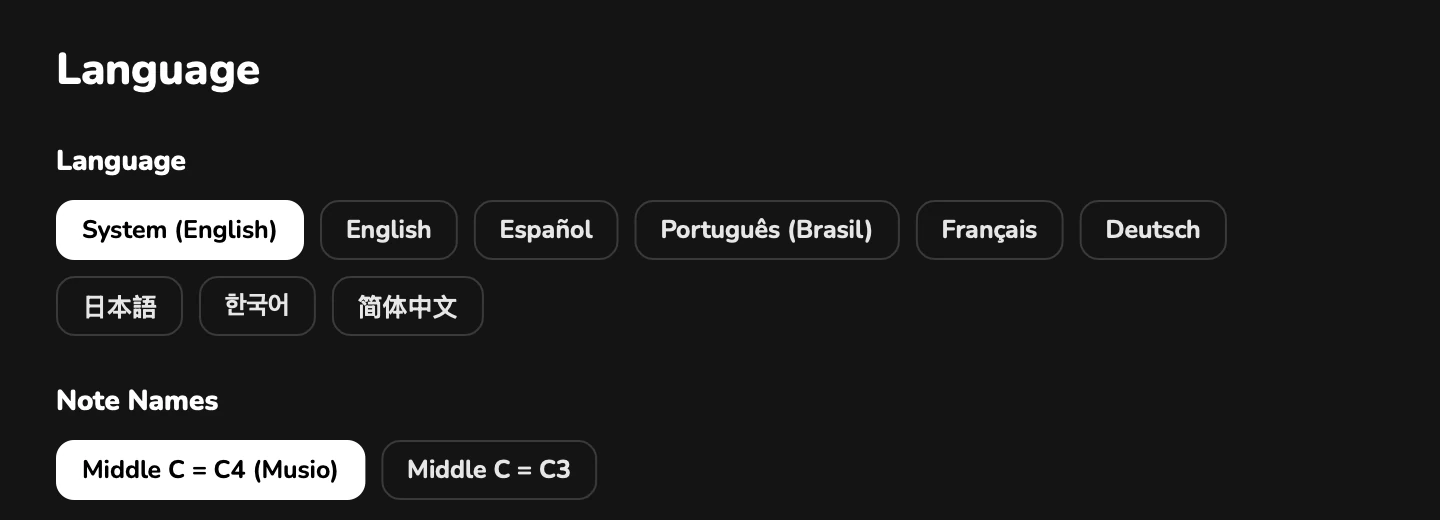
- Language: System (your computer’s language), English, Español, Português (Brasil), Français, Deutsch, 日本語, 한국어 or 简体中文.
- Note Names: Middle C = C4 (Musio) or Middle C = C3.
Both are in the View menu too.
Voice Commands
- Voice Commands: on or off. They need an internet connection.
- Voice Microphone: System default, or a microphone you choose.
- Voice Recognition: on a Mac, the Mac’s own or the alternative speech engine. Windows and Linux use the alternative speech engine, downloaded once on first use (60 MB).
See Voice commands.
Shortcuts
Key sets from other music software, and your own keys. See Keyboard shortcuts.
General
- Updates: the version you have, and Check for Updates….
- Help: Send Feedback… and Show Musio Studio Log. See Send feedback.
- Draw With the Graphics Card (Windows only). Off is faster on most computers.
