
Musio Studio manualChapter 10
Scoring to picture
Open a video, set its timecode, mark hits, find tempos that land on them, and export the video with your music.
On this page
Open a video
Open a video in any of these ways:
- File > Import Video…
- Add > Video… on Tracks
- View > Show Video
- Drop a movie file on Tracks
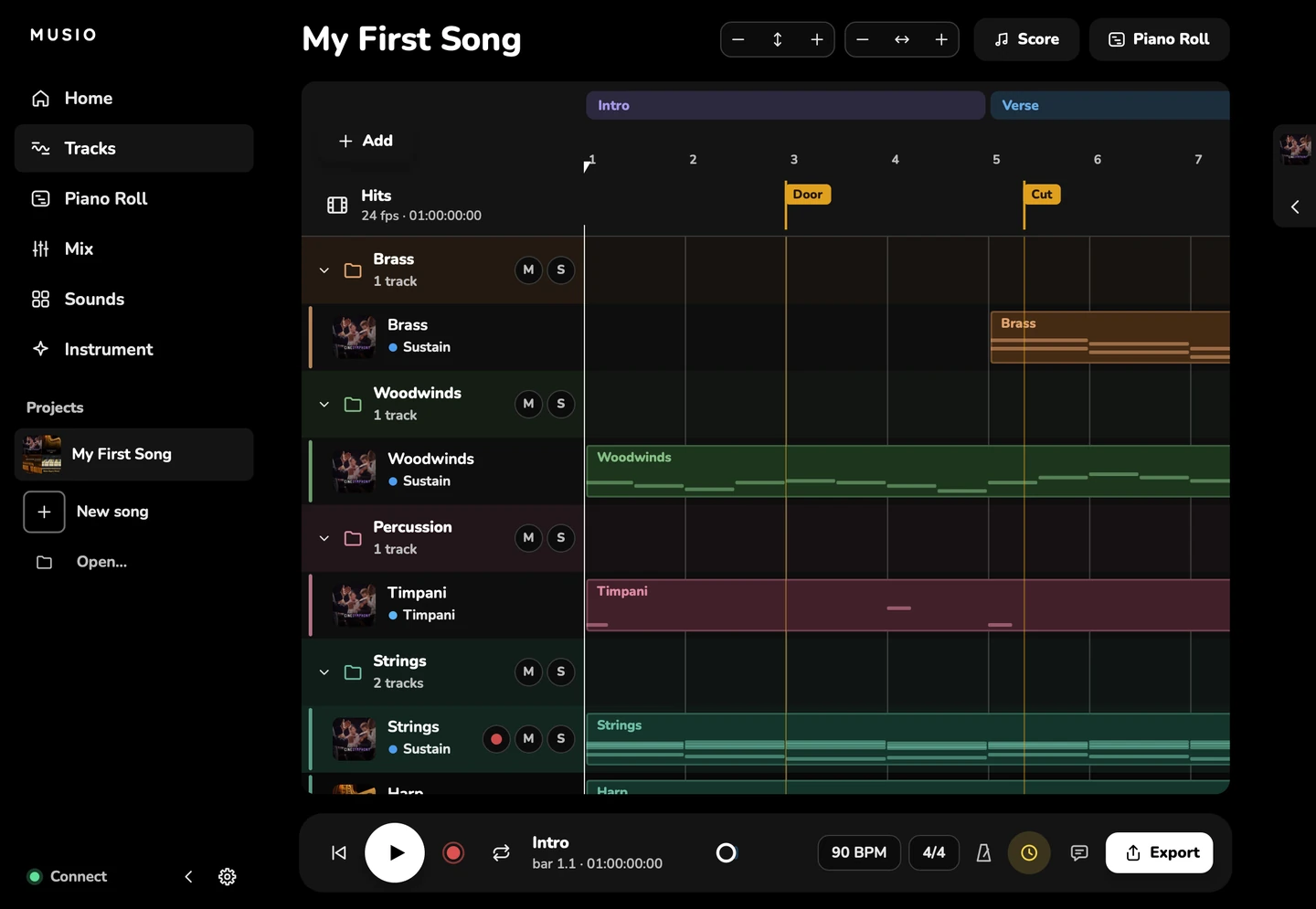
Studio reads the video’s frame rate and start timecode. The video’s sound comes in on an audio track of its own, locked to the picture. A video lane under the ruler shows its pictures.
Studio opens .mov, .mp4, .m4v, .qt, .mxf, .avi, .mkv, .wmv, .mpg, .mpeg, .m2ts, .mts, .3gp and .dv files. To change the video, choose Replace Video…, or Remove Video to take it out. If the file has moved, Studio offers to find it.
Videos that need FFmpeg
Some video plays only through FFmpeg, which Studio doesn’t include:
- ProRes on Windows;
- DNxHD and DNxHR, MXF, MKV and AVI;
- any video on Linux.
Install FFmpeg on your computer to open these. QuickTime and MP4 on a Mac, and MP4 on Windows, play without it.
Timecode and frame rates
A song with a video, or a frame rate, has a timecode.
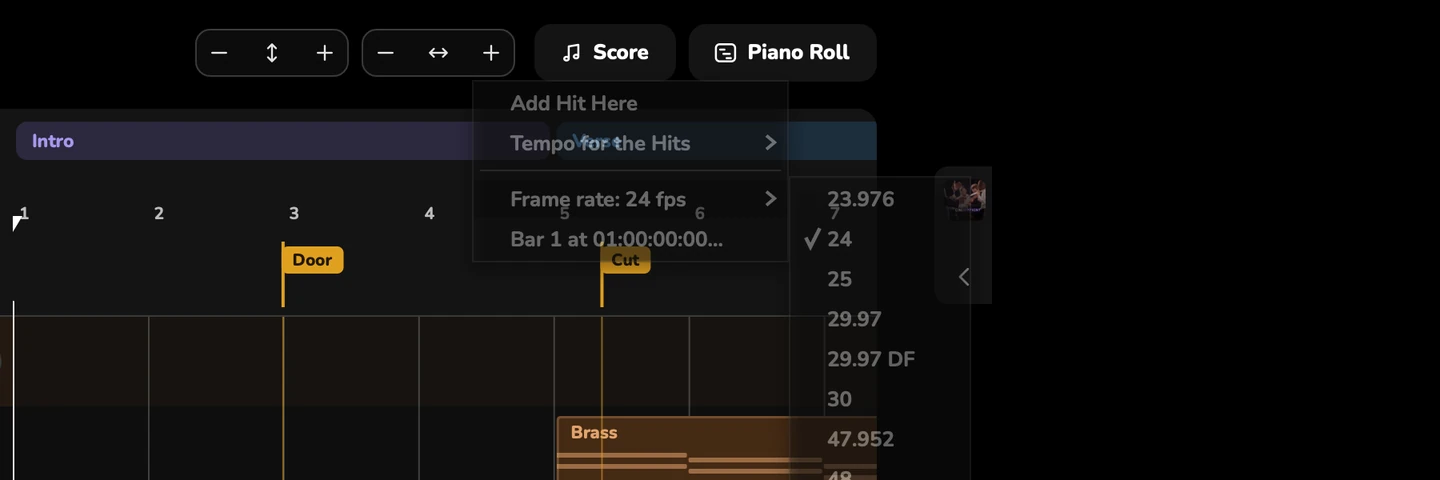
- Studio works at every film and TV frame rate: 23.976, 24, 25, 29.97 (drop-frame or not), 30, 47.952, 48, 50, 59.94 (drop-frame or not) and 60.
- It reads the timecode track of QuickTime and MP4 files. Without one, it reads timecode burned into the picture.
- To line the music up, set Bar 1 at a timecode, or choose Bar 1 at this frame. Video starts at… sets where the video begins.
- The ruler can show timecode (View > Timecode in the Ruler), and Go to Bar… (/) accepts a timecode.
The video window
The video plays in its own window, showing the frame that goes with what you hear, whether stopped, scrubbed or playing.
| Option | What it does |
|---|---|
| Full Screen | Fills the screen with the picture |
| Timecode on the Picture | Shows the timecode over the video |
| Streamers and Punches | Shows the hits on the picture |
| Picture Early By | Shows the picture early, for a screen that shows it late |
To move one frame at a time, press Option+←Alt+← and Option+→Alt+→.
Hits
A hit marks a moment in the picture you want the music to catch.
- Press H (Transport > Add Hit) to put a hit on the frame you’re hearing. Hits need a video or a frame rate.
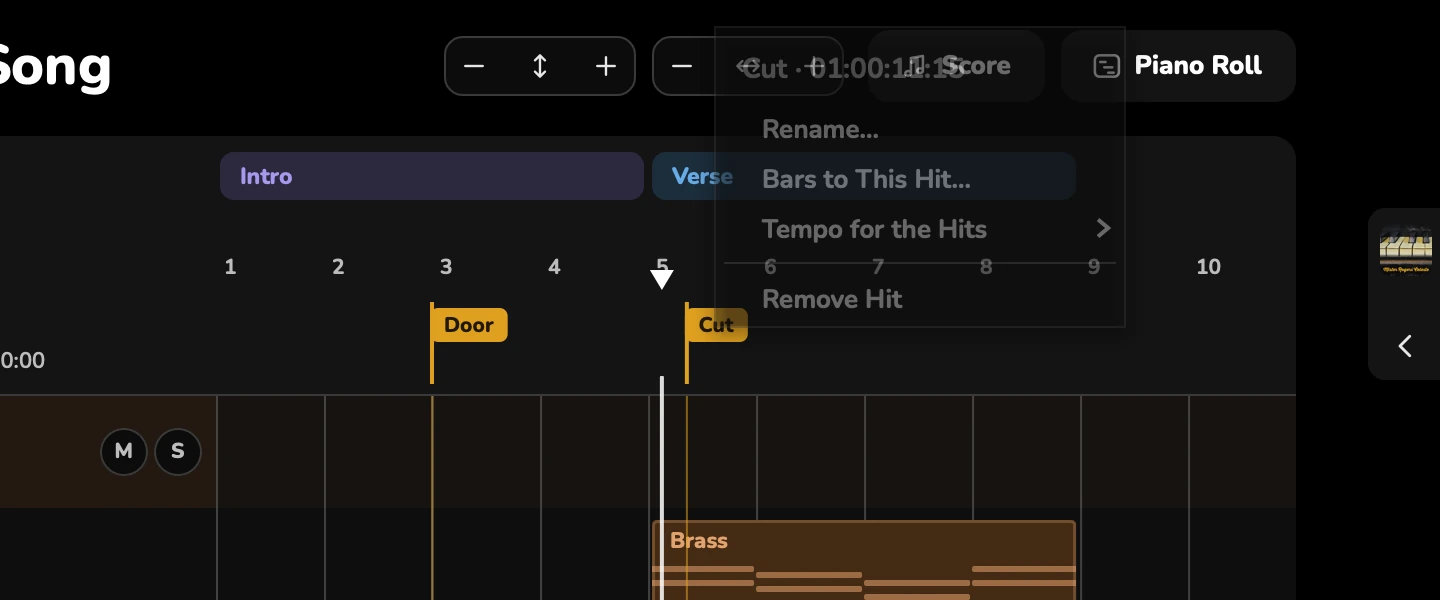
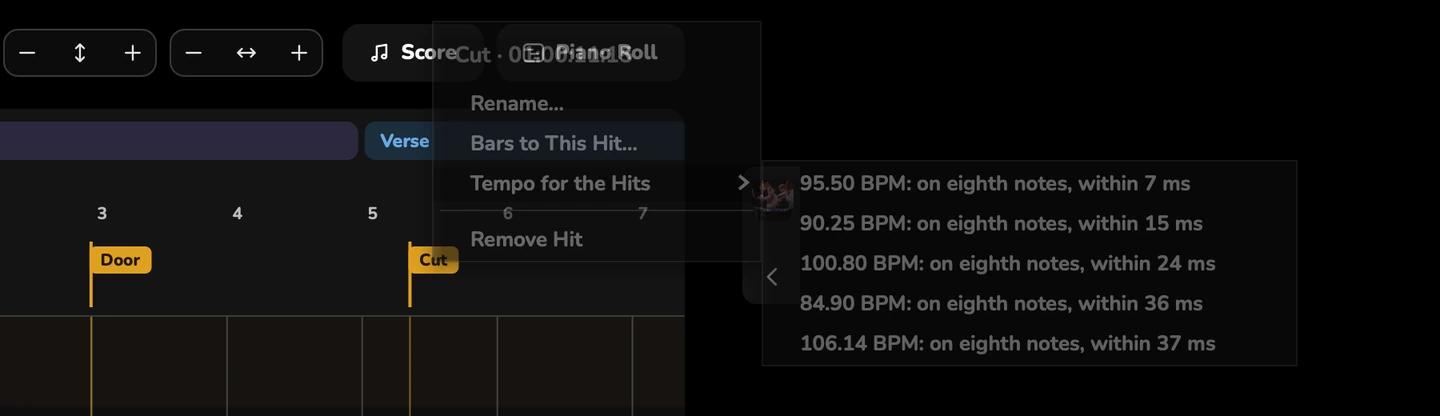
- A hit’s menu has Add Hit Here, Rename hit, Remove Hit and Bars to This Hit….
- Hits stay on their frames, whatever the tempo does.
- In the video window, a streamer sweeps into each hit and a punch flashes on it.
Tempos that land on hits
- Tempo for the Hits suggests tempos that put your hits on beats or on eighth notes, within a few milliseconds.
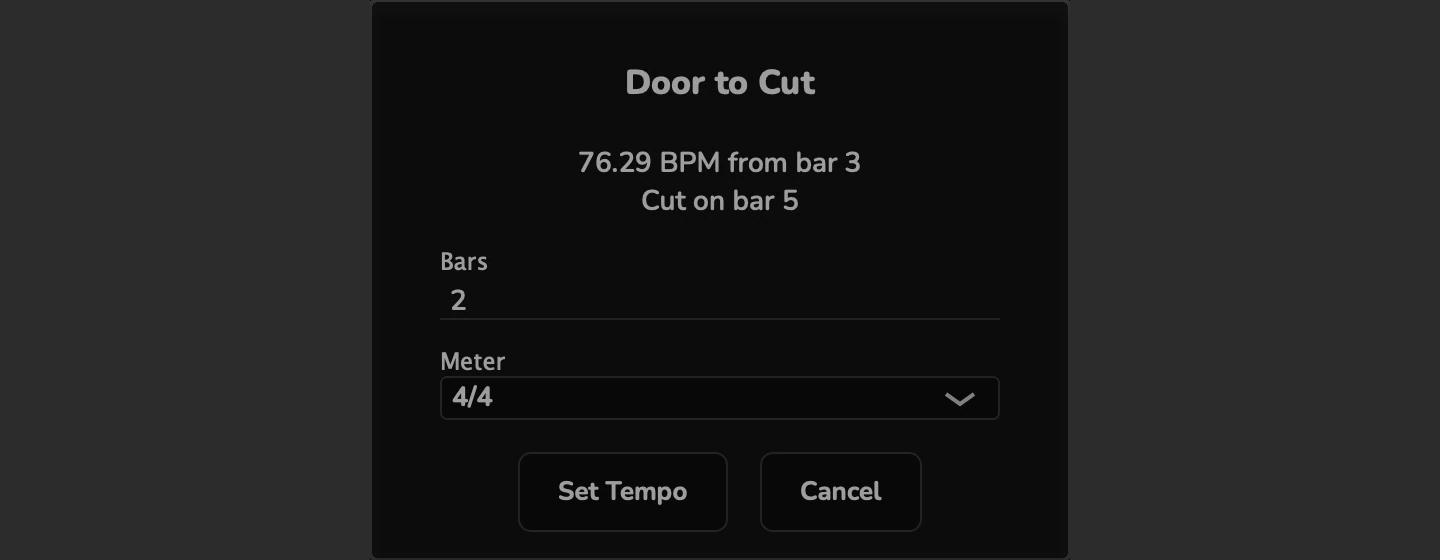
- Bars to This Hit…: right-click a hit, choose how many bars come before it and in which meter. Studio shows the tempo that lands the hit on the downbeat right after those bars, and sets it when you confirm.
Snap to frames
In a song with a timecode, choose Frames in View > Snap (or the Piano Roll’s Snap control): clips and notes snap to the picture’s frames, and the arrow keys nudge notes one frame. Studio shows Snap to frames while it’s on.
MIDI Timecode
- Transport > Send MIDI Timecode To sends the song’s timecode to a MIDI output. Choose None to stop.
- Transport > Follow MIDI Timecode makes Studio follow another device’s timecode.
Export for picture
- Export Video with Music… (in the File menu when the song has a video) makes the video with your song as its sound, in sync. First it asks what to Burn into the picture: Timecode, Bar and beat, and The song’s name. It remembers your choice. The file keeps the video’s own format.
- A song with a timecode exports WAVs (the song and stems) that say where they start (Broadcast WAV), so other music software places them at that timecode.
See Import and export for every kind of export.